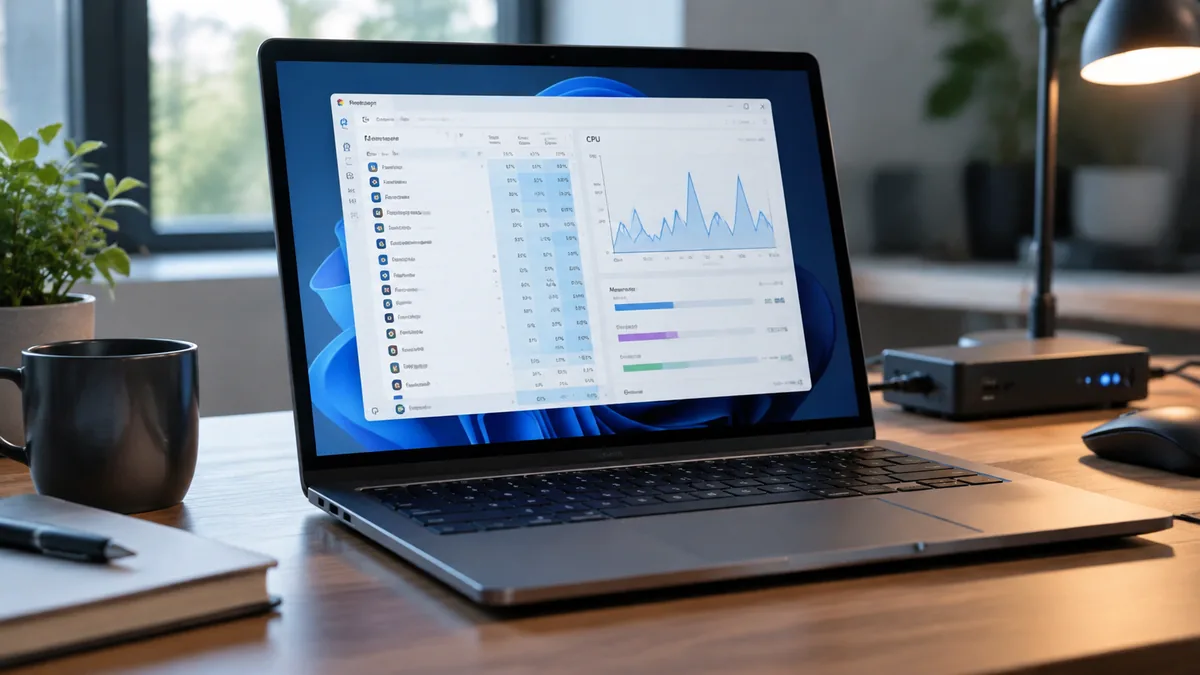
Even after Microsoft migrated the desktop client from legacy Electron to the Microsoft Edge WebView2 architecture (ms-teams.exe), Microsoft Teams remains one of the heaviest background applications on modern work computers. On an 8GB or 16GB laptop, it is common to open Task Manager or macOS Activity Monitor during a video meeting and discover Teams—alongside a dozen nested Microsoft Edge WebView2 subprocesses—consuming 2.5GB to 5GB of RAM and pushing CPU usage above 40%, causing mouse lag, audio crackles, and loud cooling fans.
Because Teams acts as a real-time communications hub, a SharePoint document viewer, a Loop workspace engine, and an AI meeting assistant all at once, its local cache and GPU rendering pipeline bloat rapidly over weeks of daily use.
Follow these seven practical fixes to cut Microsoft Teams memory and CPU consumption in half without losing work notifications.
Understand why "Microsoft Edge WebView2" multiplies inside Task Manager
When you expand Microsoft Teams in the Windows 11 Task Manager, you do not just see a single program; you see 8 to 20 child processes named msedgewebview2.exe.
Under the current Teams 2.x client architecture, every major module—the chat window, the calendar tab, the pop-out meeting stage, third-party Loop components, and embedded Excel/Word previews—runs inside its own sandboxed Chromium rendering process.
When any of those embedded web apps leaks memory or gets stuck indexing corrupt local IndexedDB cache files, RAM usage climbs continuously until you restart the app.
| Symptom in Task Manager / Activity Monitor | Primary Cause Inside Teams | Most Effective Fix |
|---|---|---|
| RAM climbs past 3GB–4GB after a few hours of chat | Corrupted local WebView2 IndexedDB cache or embedded Loop/Office file previews | Clear the MSTeams_8wekyb3d8bbwe local cache folder and disable Loop/animations |
| CPU spikes to 50%–90% the moment a video call starts | Software-rendered background blur, 3×3/7×7 Together Mode, or outdated GPU driver | Switch off AI video filters/blur or switch video view to Speaker View |
| High disk and CPU usage right after booting your PC | Both old Teams and New Teams (Personal + Work) launching simultaneously at login | Uninstall redundant "Microsoft Teams (Personal)" package and disable Startup launch |
| Laptop freezes when sharing your screen during a call | GPU hardware acceleration conflict with third-party screen overlays or docking stations | Update discrete/integrated GPU drivers and close background screen-capture hooks |
Fix 1: Audit and remove duplicate Teams installations (Work vs. Personal)
Many Windows 11 computers unknowingly run two separate installations of Microsoft Teams in the background at the exact same time: the consumer version pre-installed with Windows 11 (often labeled Microsoft Teams (free) or linked to a personal @outlook.com account) and the enterprise version (Microsoft Teams work or school). Together, they consume over 1.5GB of RAM before you even join a meeting.
Open Windows Settings > Apps > Installed apps.
Type Teams in the search box.
Inspect the results:If you see an older entry named Teams Machine-Wide Installer alongside Microsoft Teams, uninstall the Teams Machine-Wide Installer and any legacy Microsoft Teams Classic entry immediately.If you only use Teams for your company job and never use consumer chat, uninstall the separate consumer app or disable its startup toggle under Settings > Apps > Startup.
Fix 2: Perform a clean reset of the New Teams (MSTeams) WebView2 cache
Unlike the old Teams client that stored its cache in %appdata%\Microsoft\Teams, the current MSIX-packaged Teams client stores gigabytes of cached images, GIFs, meeting transcripts, and WebView2 scripts inside a protected LocalPackages directory. Clearing this cache drops idle RAM usage from 2.5GB back down to 500–700MB without deleting any of your cloud chats or files.On Windows 11 (Fastest method via Settings):Right-click the Microsoft Teams icon in the system tray (bottom right corner by the clock) and select Quit Teams.
Open Windows Settings > Apps > Installed apps.
Find Microsoft Teams, click the three-dot menu (…) on the right, and select Advanced options.
Scroll down to the Reset section and click Reset (confirm Reset again).
This safely wipes the corrupt local WebView2 cache while leaving the app installed.(Manual folder path if preferred): Press Windows + R, paste %localappdata%\Packages\MSTeams_8wekyb3d8bbwe\LocalCache\Microsoft\MSTeams, press Enter, and delete all files inside that folder while Teams is closed.On macOS:Right-click the Microsoft Teams icon in the Dock and click Quit.
Open Terminal and run the following command to remove the cached WebView2 containers: rm -rf ~/Library/Containers/com.microsoft.teams2/Data/Library/Caches/* Relaunch Teams and sign back in.
Fix 3: Disable animations, GIF auto-play, and GPU-heavy visual effects
Every animated emoji, auto-playing Giphy sticker in a busy team channel, and smooth window transition forces the WebView2 compositor to keep GPU and RAM buffers active in the background.
Click the three-dot menu (…) at the top right of the Microsoft Teams window and open Settings.
Select Appearance and accessibility.
Turn On the toggle for Turn off animations (this stops background UI animations and prevents animated images from auto-playing until you click them).
Next, open the Files and links tab in Teams Settings and change File open preference from Teams to Desktop app (or Browser).
Opening a 40MB Excel spreadsheet or PowerPoint deck inside the Teams window spawns an entire embedded Office Online engine inside Teams RAM; opening it in your native desktop app keeps Teams lightweight.
Fix 4: Cut CPU usage by 40% during video meetings (Blur, Avatars, and Gallery View)
When your laptop fan sounds like a jet engine during a call, the culprit is almost always real-time AI segmentation running on your CPU or integrated GPU (unless your laptop has a dedicated Neural Processing Unit / NPU used by Windows Studio Effects).
Use solid background colors or turn off Background Blur: Real-time background matting processes 30 frames per second of HD video continuously.
Turning off background effects—or using your webcam’s built-in hardware optical depth of field—immediately drops CPU usage by 15% to 30%.
Switch from "Large Gallery" or "Together Mode" to "Speaker View": Decoding 9 to 49 simultaneous incoming video streams saturates your CPU and network buffers.
During screen-sharing sessions, click View > Speaker or Focus on content at the top of the meeting window.
Avoid recording and transcribing locally with duplicate bots: If your team uses automated meeting notes, choose a lightweight workflow rather than stacking three recording bots in the same call.
Read our breakdown on How to Choose an AI Meeting Notes Tool for a Small Team.
Fix 5: Disable Outlook Presence integration and third-party Teams Add-ins
If both Microsoft Outlook and Microsoft Teams freeze briefly when you switch windows, the Teams Presence COM Add-in inside Classic Outlook may be hanging on inter-process communication calls.In Classic Outlook, go to File > Options > Add-ins > COM Add-ins > Go, and uncheck Microsoft Teams Meeting Add-in for Microsoft Office temporarily if you schedule all meetings from the Teams calendar or New Outlook directly.
Inside Teams, click Apps on the left sidebar, select Manage your apps at the bottom, and remove unused third-party bots, polls, and project-management connectors that run background webhooks in your channels.
Fix 6: Stop Teams from hijacking Outlook links and background startup
Even when you close the main Teams window with the X button, Teams keeps all of its WebView2 services alive in memory by default.
Open Teams Settings > General.
Uncheck Auto-start application so Teams only loads when you actually start your workday.
Uncheck On close, keep the application running if you want clicking the X button at the end of a call to release all 3GB of RAM back to your operating system immediately.
Fix 7: Use the Progressive Web App (PWA) on 8GB RAM laptops
If you work on an older laptop with 8GB of non-upgradeable RAM where running Teams, Chrome/Edge, and large Microsoft Excel workbooks simultaneously pushes memory usage above 95%, you can bypass the standalone ms-teams.exe client entirely:Open https://teams.microsoft.com in Microsoft Edge or Google Chrome.
Click the browser menu (…) and select Apps > Install this site as an app.
Because the browser is already open on your desktop anyway, running Teams as a browser-managed PWA shares the browser’s existing V8 JavaScript and GPU processes, saving 600MB to 1.2GB of duplicate system memory.
Explore more workflow optimizations in our AI & Software section.