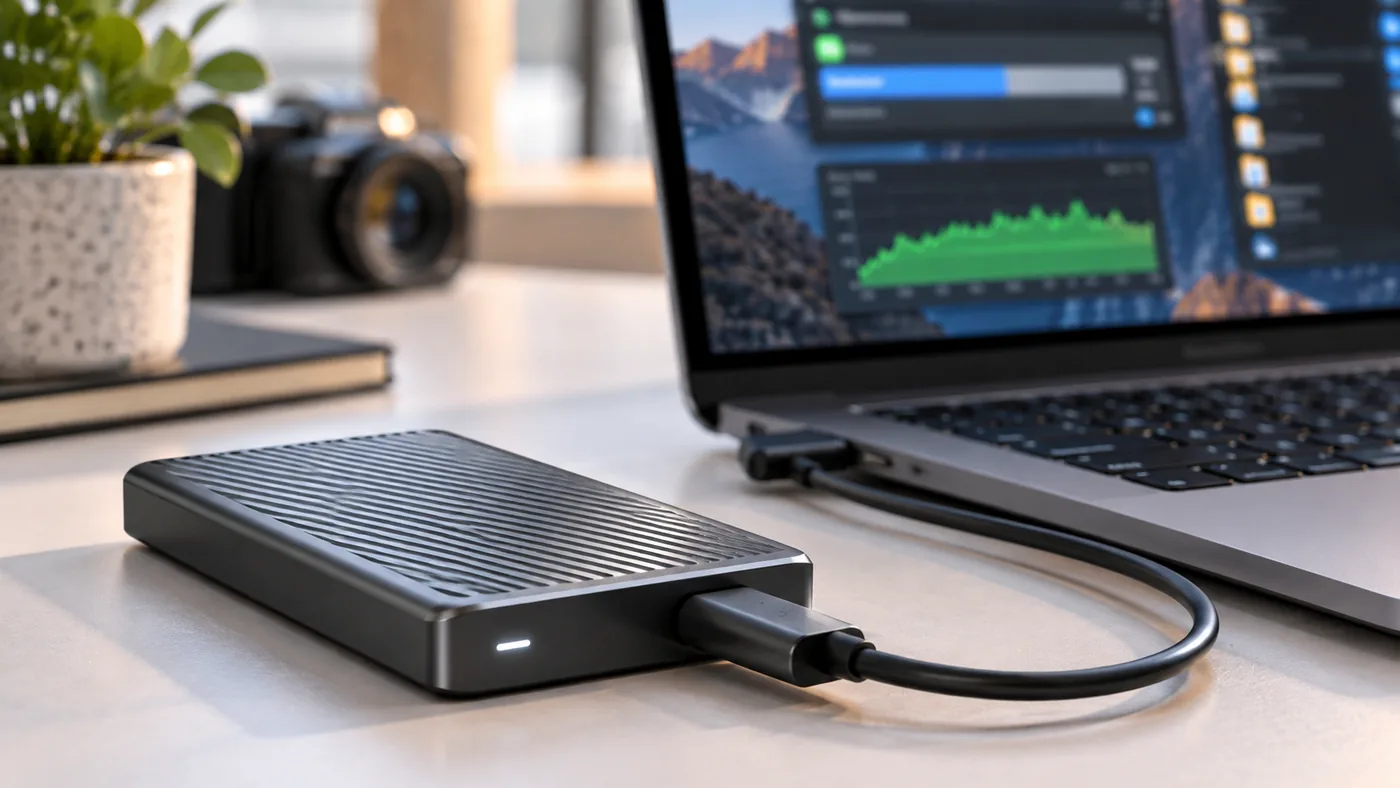
A portable SSD advertised for around 1,000MB/s can be an excellent drive and still benchmark far below that number on your laptop.
The reason is that the speed printed on the box is usually a best-case sequential result under a specific interface and test condition. Your real transfer has to pass through the SSD controller, cable, USB port, operating system, file system, and the source or destination drive.
The slowest part wins.
10Gbps is the link rate, not your file-copy speed
USB 3.2 Gen 2 is commonly described as a 10Gbps interface.
That does not mean a file transfers at 10 gigabits of useful payload every second. Link encoding, protocol overhead, command handling, and the storage device itself all reduce the practical throughput.
That is why a well-performing 10Gbps portable SSD often tops out around the neighborhood of 1,000MB/s rather than the theoretical conversion you might calculate from 10Gbps.
Samsung, for example, rates the T7 series at up to 1,050MB/s reads and 1,000MB/s writes over USB 3.2 Gen 2.
Samsung also notes that achieving the maximum depends on the host configuration and cable support.
The most common bottleneck is the host port
A USB-C connector does not tell you the speed of the port.
USB-C can carry multiple generations of USB, Thunderbolt, USB4, charging, and display modes.
A laptop may have two USB-C ports that look identical but support different capabilities.
If you connect a 10Gbps SSD to a 5Gbps port, the drive cannot negotiate a 10Gbps link.
Before blaming the SSD, check the laptop’s port specification.
The cable matters more than people expect
A cable can charge correctly and still be a poor data cable.
Some USB-C cables are designed mainly for charging and only carry slower USB data. Others support 10Gbps, 20Gbps, 40Gbps, or higher depending on the standard.
For a portable SSD, start with the cable supplied by the drive manufacturer.
If performance changes dramatically when you swap cables, you have found a cheap problem to solve.
Sequential benchmarks are not normal file copies
A benchmark writing a large sequential test file is a best-case workload.
Real folders may contain thousands of small files. Each file introduces metadata operations and additional work for the file system.
Copying a folder with 50,000 small project files can therefore be much slower than copying one 100GB video file, even if the total amount of data is similar.
That does not necessarily mean the SSD is broken.
Your other drive can be the bottleneck
An external SSD cannot receive data faster than the source can provide it.
If you are copying from:
- a slow hard drive,
- a network share,
- a memory card,
- or an older internal SSD under heavy load,
the portable SSD may spend much of the transfer waiting.
Test the external drive with a local benchmark or a known-fast source before judging its maximum performance.
Hubs and docks can cut speed
A dock can place several devices behind one upstream connection.
Two monitors, Ethernet, a webcam, and an SSD may all share resources depending on the dock architecture.
Some USB-C display configurations also allocate high-speed lanes to DisplayPort video, leaving less capacity for USB data.
If an SSD is fast directly on the laptop but slow through the dock, the SSD is not the first thing to replace.
TechRankly’s USB-C Dock Dual 4K 60Hz guide explains why display and USB bandwidth can interact.
Heat can change sustained performance
Portable SSD controllers and NAND flash generate heat during long transfers.
Some drives reduce performance when temperatures rise to protect the hardware.
A short benchmark may look excellent, while a 500GB sustained write slows down later.
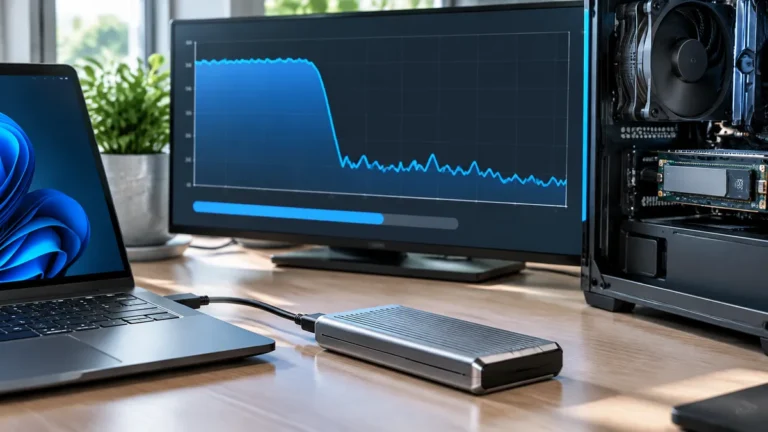
If speed starts high and falls after several minutes, temperature, write cache behavior, or the source/destination workload may be more relevant than the USB link itself.
File system choice can affect compatibility and workflow
The file system is rarely the only reason a modern SSD drops from 1,000MB/s to a tiny fraction of that speed, but it affects how the drive behaves across platforms and workloads.
APFS is a natural choice for Mac-only use.
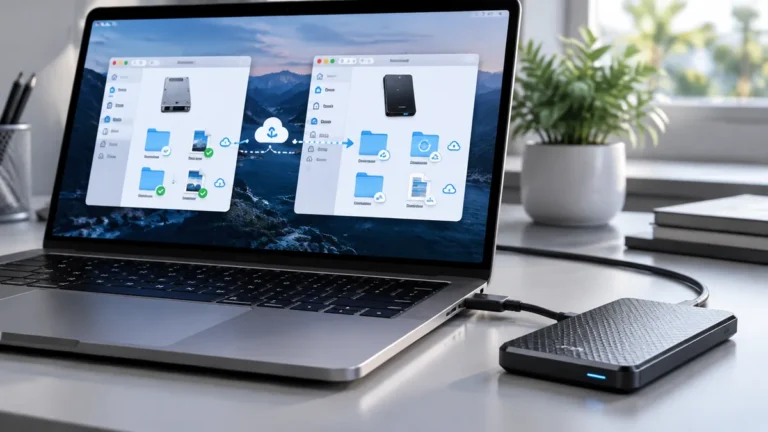
exFAT is useful when you need broad Mac and Windows compatibility.
If you are deciding between them, see TechRankly’s APFS vs. exFAT guide.
A useful diagnostic sequence
Test in this order:
- Use the drive’s original cable.
- Connect directly to the fastest port on the computer.
- Disconnect the dock.
- Close heavy background transfers.
- Benchmark the drive.
- Copy one large file.
- Copy a folder of many small files.
- Compare short and long transfers.
- Test another computer if available.
Write down the results.
If the drive is fast directly but slow through one cable or dock, you have isolated the issue.
If it is slow everywhere, then investigate the SSD, firmware, thermal behavior, or host compatibility.
Bottom line
A 10Gbps label is the ceiling of the connection technology, not a promise that every file copy will run at 1,000MB/s.
The fastest troubleshooting method is to simplify the path: original cable, direct port, known-fast source, and one large file.
Once you establish the SSD’s direct performance, add the dock and other devices back one at a time.
Sources
- https://www.samsung.com/us/business/support/owners/product/t7-series-2tb/
- https://download.semiconductor.samsung.com/resources/user-manual/Samsung_Portable_SSD_T7_Shield_User_Manual_Spanish_ver_1.0.pdf
- https://support.microsoft.com/en-us/windows/hardware/fix-usb-c-problems-in-windows