Plugging your computer directly into a router with an Ethernet cable is supposed to deliver the fastest, lowest-latency connection possible. Yet it is remarkably common to run a speed test over a wired cable and hit an exact ceiling between 92 Mbps and 95 Mbps—even when you pay for a 500 Mbps or 1 Gbps fiber plan and your smartphone effortlessly reaches 450 Mbps over Wi-Fi right next to your desk.
When a wired connection stalls right around 94 Mbps, your ISP is not throttling you. Instead, your Ethernet link has fallen back from 1000BASE-T (1 Gbps) to 100BASE-TX (100 Mbps Fast Ethernet) minus TCP/IP packet overhead.
Use this step-by-step physical and software diagnostic guide to unlock full Gigabit (or 2.5 Gigabit) speeds on Windows 11 and macOS.
Understand the 8-pin rule: Why Ethernet drops from 1,000 Mbps to exactly 100 Mbps
Inside every standard Cat5e, Cat6, or Cat6a Ethernet cable are eight individual copper wires arranged in four twisted pairs (pins 1 through 8 on the clear RJ45 connector). Gigabit Ethernet (1,000 Mbps) and 2.5GbE require all 8 pins (all 4 twisted pairs) to make clean, continuous electrical contact from end to end.
Fast Ethernet (100 Mbps) only requires 4 pins (2 twisted pairs: pins 1, 2, 3, and 6).If even one single wire out of the eight (for example, pin 4, 5, 7, or 8) is slightly bent inside your wall jack, oxidized on the gold contact blade, or broken inside a tightly bent cable under a carpet, your network card does not disconnect. Instead, auto-negotiation silently downgrades the entire link tenfold from 1,000 Mbps to 100 Mbps.
| Verified Link Speed in OS Settings | Actual Speed Test Ceiling | What Is Causing the Bottleneck |
|---|---|---|
| 100/100 (Mbps) | 92 – 95 Mbps | Damaged cable wire (fewer than 8 pins active), Cat5 legacy cable, 10/100 switch port, or Energy-Efficient Ethernet bug |
| 1000/1000 (Mbps) | 90 – 150 Mbps (fluctuating) | Software bottleneck: Router QoS limiter, VPN tunnel overhead, or outdated Realtek/Intel NDIS driver |
| 1000/1000 (Mbps) | 920 – 940 Mbps | Normal physical limit of a 1GbE port on a 1.2+ Gbps fiber plan (requires a 2.5GbE adapter and switch to exceed) |
| 10/10 (Mbps) | 8 – 9 Mbps | Severe cable damage, water/EMI interference in wall wiring, or sleeping port wake-on-LAN state |
Step 1: Verify your negotiated Link Speed in Windows 11 or macOS
Before touching your router, check the exact physical link speed your network card negotiated with the switch or router port:On Windows 11: Open Settings > Network & internet > Ethernet.
Scroll down to the line labeled Aggregated link speed (Receive/Transmit).Or press Windows + R, type ncpa.cpl, double-click your Ethernet adapter, and inspect the Speed field (100.0 Mbps vs. 1.0 Gbps or 2.5 Gbps).On macOS: Open System Settings > Network, click your Ethernet service (or USB/Thunderbolt 10/100/1000 LAN adapter), click Details > Hardware, and check the Speed line (100baseTX vs. 1000baseT).If the operating system reports 100 Mbps (or 100baseTX), no browser tweak or DNS change will ever push your speed past 95 Mbps until you restore the physical 1,000 Mbps handshake.
Step 2: Inspect the cable jacket and test a short, factory-crimped Cat6 patch cord
Do not trust a cable just because it looks intact on the outside. Flat "under-carpet" Ethernet cables sold online and older cords bundled with ISP modems years ago are notorious for dropping pairs.
Look closely at the printed lettering along the outer plastic jacket of your Ethernet cable:CAT 5 (without the "e"): Rated only for 100 Mbps over standard runs.
Replace it immediately.CAT 5e, CAT 6, or CAT 6A: Rated for 1 Gbps to 10 Gbps, provided all 8 pins are intact.
Look inside the clear RJ45 plug: Hold both ends of the cable up to a bright light.
Confirm that all 8 gold contact pins are present and sit at the exact same height (some cheap cords bundled with smart TVs or printers literally only populate 4 gold pins inside the plug to save two cents in manufacturing). Bypass wall jacks temporarily: If your PC plugs into an RJ45 wall plate in your Home Office, a single loose punch-down wire inside the wall keystone will lock you to 100 Mbps.
Move your laptop directly next to the router and test with a known-good, short Cat6 patch cable.
Step 3: Disable "Energy-Efficient Ethernet" (Green Ethernet) and forcing Speed & Duplex
Modern Intel I219/I225/I226 and Realtek PCIe/USB Ethernet controllers include a power-saving feature called Energy-Efficient Ethernet (EEE / IEEE 802.3az) or Green Ethernet. When connecting to certain ISP routers or unmanaged desktop switches, EEE misinterprets line impedance and permanently downshifts the port to 100 Mbps.
Right-click Start and select Device Manager.
Expand Network adapters and double-click your Ethernet controller (for example, Realtek Gaming GbE Family Controller or Intel Ethernet Controller I225-V).
Click the Advanced tab and modify these properties:Energy-Efficient Ethernet (EEE) / Green Ethernet: Set to Disabled.
Power Saving Mode / Ultra Low Power Mode: Set to Disabled. Gigabit Master Slave Mode: Leave on Auto Detect.
Speed & Duplex: Verify that it is set to Auto Negotiation. If it is already on Auto Negotiation and stuck at 100 Mbps with a brand-new Cat6 cable, select 1.0 Gbps Full Duplex (or 2.5 Gbps Full Duplex) and click OK. Wait 5 seconds for the link light to blink and re-check ncpa.cpl. (Note: If the connection drops to Network cable unplugged when forced to 1.0 Gbps Full Duplex, you have 100% proven a physical wire fault in the cable, wall jack, or switch port).
Step 4: Check your USB-C Hub, Ethernet Switch, or Router LAN port rating
Sometimes the cable and laptop are fine, but the port at the other end is physically incapable of Gigabit speeds—or running in a power-saving mode:Check USB-C multiport hubs: Look at how your USB-C Ethernet adapter is plugged in. If a USB-C Gigabit Ethernet adapter is connected through a USB 2.0 port or a USB 2.0 extension cable, its throughput will be capped well below Gigabit speeds.
Check router "Green Mode" on LAN ports: Routers from Asus, TP-Link, and Fritz!
Box allow individual LAN ports (often LAN 3 and LAN 4) to be set to Eco Mode (100 Mbps) in the router web dashboard. Log into your router and ensure all LAN ports are set to Gigabit (1000 Mbps).
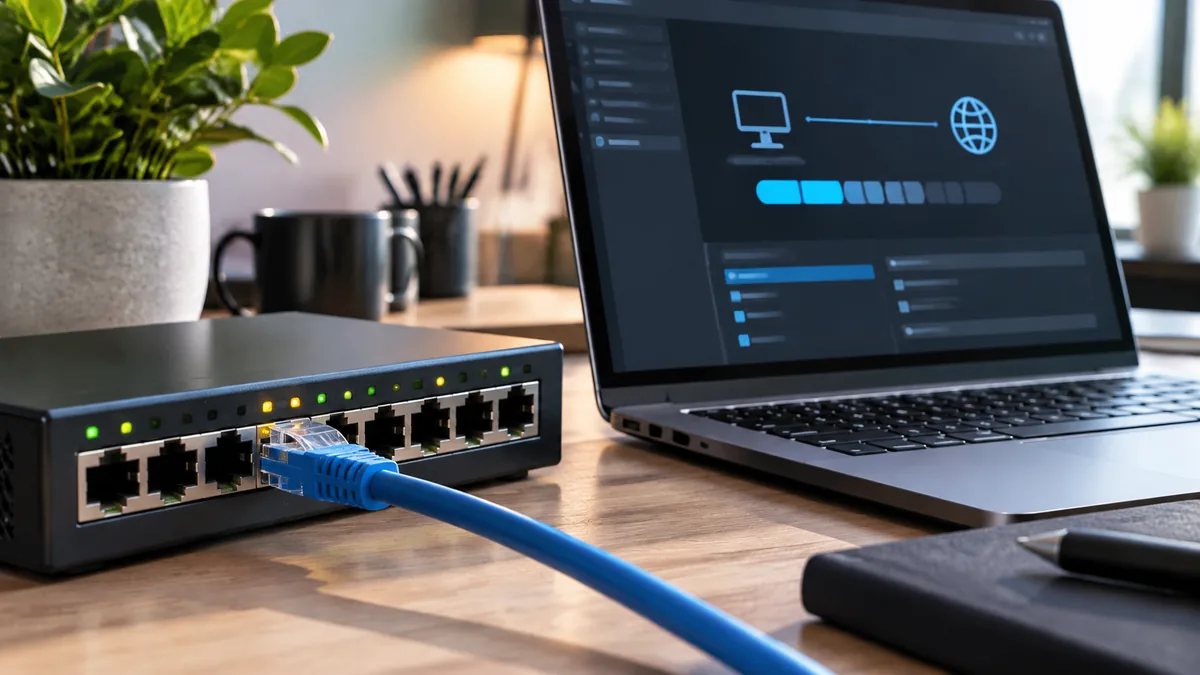
Check the LED color on your network switch: On most desktop switches (Netgear, TP-Link, Ubiquiti), an Amber/Orange LED on the port indicates a 100 Mbps connection, whereas a Green LED indicates a 1,000 Mbps connection.
Step 5: What if your Link Speed says 1,000 Mbps, but speed tests still stop at 100 Mbps?
If Windows or macOS confirms your link speed is 1.0 Gbps (1000/1000 Mbps), your cable and physical ports are healthy—meaning the 100 Mbps cap is happening either on the WAN cable between your fiber ONT/modem and your router, or inside software:Check the short Ethernet cable between your Fiber ONT / Cable Modem and your Wi-Fi Router: Wait—if that single cable is damaged and running at 100 Mbps, wait a second: wouldn’t Wi-Fi also be capped at 100 Mbps?
Yes! If Wi-Fi is fast (e.g., 500 Mbps) and only your PC is slow despite showing a 1000 Mbps link, the issue is local to your PC.
Disable OEM "Network Optimizer" software on your PC: Pre-installed utilities such as Killer Intelligence Center, Asus GameFirst, Lenovo Vantage Network Boost, MSI Dragon Center (cFosSpeed), or HP Network Check frequently apply a hard 100 Mbps upload/download traffic-shaping profile after a Windows 11 update.
Uninstall or disable the traffic-shaping module and run netsh int tcp set global autotuninglevel=normal in an Admin Terminal.
For more troubleshooting on local network bottlenecks and router setup, check our guides on Wi-Fi Connected but No Internet?
Fix Drops During Calls and Wi-Fi 7 vs. Wi-Fi 6E for a Home Office inside Networking.