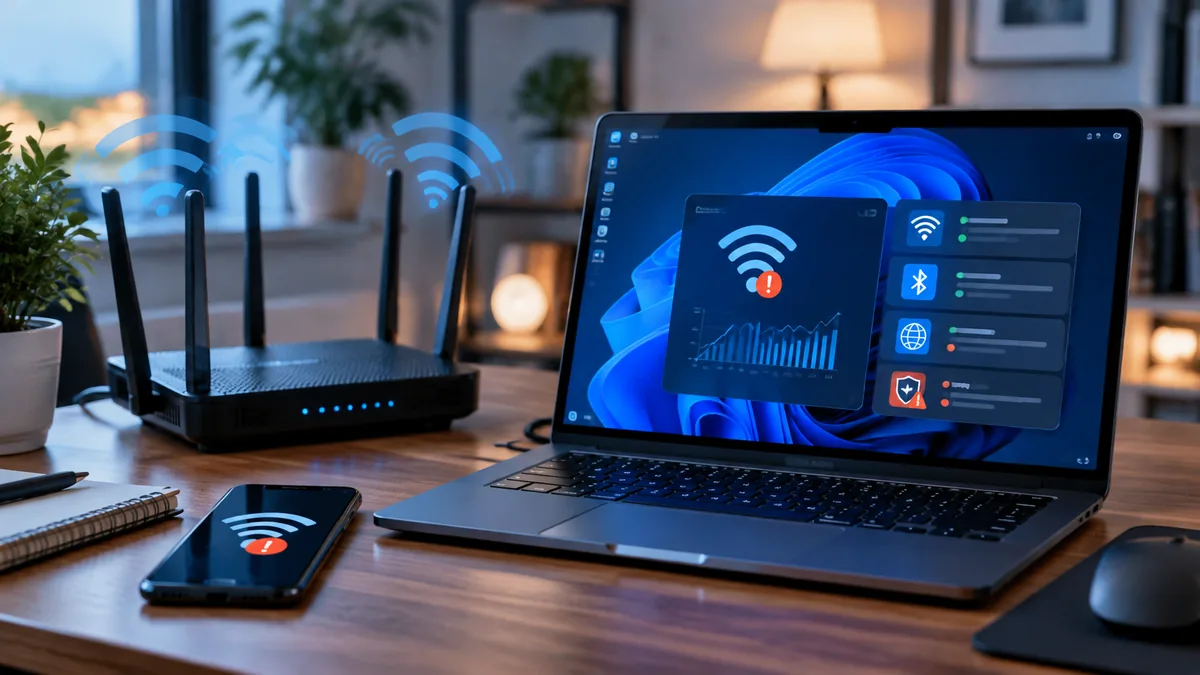
A laptop can show strong Wi-Fi signal and deliver a good speed-test result while Zoom or Teams calls still freeze for several seconds. Video calls depend on latency, jitter, and packet loss—not just peak download speed. When Windows says “Connected, no internet,” determine whether the break is between your computer and the router, between the router and the internet, or only in DNS lookups.
This guide starts with a short diagnostic test and then covers router and adapter settings that are worth testing one at a time. Menu names vary by router model and region, so use the settings available on your device rather than copying a channel number blindly.
Run two ping tests during a dropout
- On Windows, open Command Prompt and run
ipconfig. Note the Default Gateway. On macOS, hold Option while clicking the Wi-Fi icon and note the router address. - Open two terminal windows. In the first, ping your router. On Windows, use
ping 192.168.1.1 -t; on macOS, useping 192.168.1.1. Replace the sample address with your actual gateway. - In the second window, ping a public IP address such as
1.1.1.1. On Windows, add-tto keep the test running. - Leave both tests running until the call stutters. Press Ctrl + C to stop the Windows tests and compare the results.
| Router ping | Public IP ping | What it suggests |
|---|---|---|
| Stable | Stable, but websites fail by name | Check DNS resolution and browser errors |
| Spikes or times out | Also drops | Investigate local Wi-Fi, interference, router load, or the adapter |
| Stable | Times out on multiple devices | Check the modem/ONT, ISP status, and router WAN connection |
| Both fail on one computer only | Both fail | Check the computer’s driver, power settings, and security software |
Some networks block ping traffic, so a timeout alone is not conclusive. Repeat the test and compare another device before changing router settings.
Fix 1: Change DNS only if the test points to DNS
If the router and public-IP pings stay stable but domain names fail to resolve, test a trusted DNS provider. Common options include Cloudflare (1.1.1.1 and 1.0.0.1) or Google Public DNS (8.8.8.8 and 8.8.4.4). You can change DNS on one computer first, which makes it easier to reverse if the problem does not improve. DNS changes will not fix a weak Wi-Fi signal or an ISP outage.
Fix 2: Test band steering without changing every device
Many routers combine 2.4 GHz, 5 GHz, and sometimes 6 GHz under one network name. Features called Smart Connect or Band Steering choose a band automatically. This can be convenient, but a particular client may pause while roaming between bands or access points. If your router supports it, temporarily create or enable a separate 5 GHz network and connect only the work computer to it for a controlled test. If there is no improvement, restore the original setup.
Fix 3: Check DFS channel changes on 5 GHz
Some 5 GHz channels are subject to Dynamic Frequency Selection (DFS), which requires a router to move away from a channel when radar is detected. A channel change can briefly interrupt clients. Check the router’s event log or wireless status to see whether channel changes line up with the dropouts. If they do, test a non-DFS channel supported by your router and local regulatory rules. Available channels differ by country and device, so do not assume that a particular channel is legal or supported everywhere.
Fix 4: Test 80 MHz instead of 160 MHz channel width
Wide 160 MHz channels can offer higher peak speeds, but they may be harder to use reliably in crowded environments and can depend on more spectrum. If your router is set to 160 MHz and calls drop, test 80 MHz and compare packet loss and call stability. Keep the change only if it improves your real-world connection; the best width depends on your environment.
Fix 5: Review IPv6 and QoS cautiously
If only certain websites or cloud applications stall, check for router firmware updates and ask your ISP whether IPv6 is configured correctly. Disabling IPv6 is not a general Wi-Fi fix. If you test it temporarily for diagnosis, document the original setting and restore it if there is no clear improvement. Likewise, disable an older QoS or traffic-prioritization feature only as a short test, then re-enable it if the results do not support it.
Fix 6: Check WPA3 compatibility and the Wi-Fi adapter
Older laptops and USB adapters may have compatibility problems with certain WPA3 transition settings or drivers. Update the adapter driver from the computer manufacturer and install router firmware updates. If only one older device fails, test a compatible WPA2-Personal AES setting on the 2.4 GHz or 5 GHz network if your router supports it and your security requirements allow it. The 6 GHz band requires WPA3; do not try to force WPA2 on a 6 GHz network.
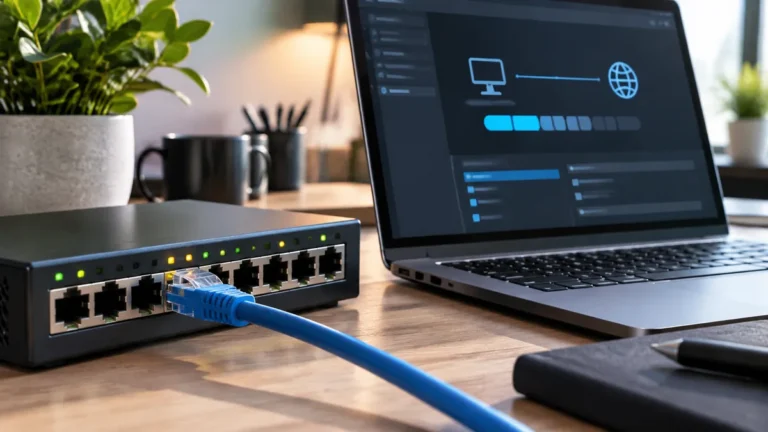
On Windows, open Device Manager → Network adapters and review the adapter’s power settings if the connection drops while idle. Change one option at a time and test. For call-critical work, a wired Ethernet connection is still a useful way to separate wireless problems from ISP problems.
Frequently asked questions
Why does a speed test look good when calls freeze?
A speed test measures throughput over a short period. A call can still suffer from brief packet loss, latency spikes, or a Wi-Fi roam that a single speed score hides.
Should I split every Wi-Fi band into a separate network?
Not automatically. Separate SSIDs are useful for diagnosis or for a client that struggles with band steering, but a well-configured mesh system may work best with one shared name.
For more ways to isolate call problems, read TechRankly’s guide to Ethernet vs. Wi-Fi for video calls and its overview of Wi-Fi 7 vs. Wi-Fi 6E.