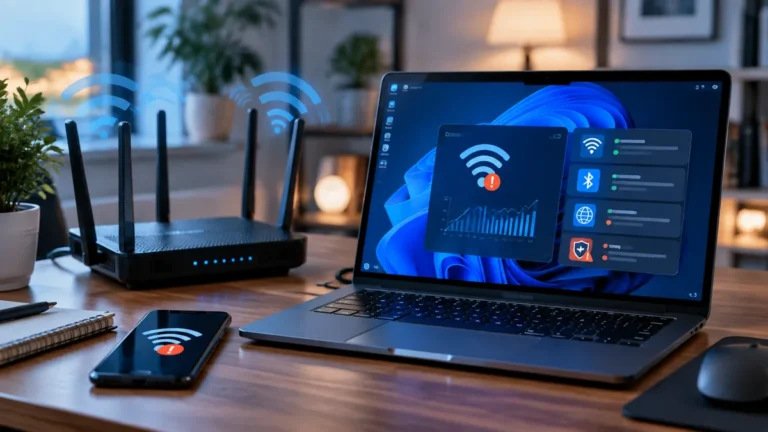
Wi-Fi 7 routers often advertise a feature called Multi-Link Operation, or MLO. It sounds like a simple speed boost, but the useful question is more specific: what does MLO actually change in a home network, and when can you notice it?
MLO allows a compatible Wi-Fi 7 device to use more than one wireless link instead of treating the 2.4 GHz, 5 GHz, and 6 GHz bands as completely separate choices. Depending on the hardware and firmware, those links can be used for throughput, reliability, or faster movement between bands.
That does not mean every Wi-Fi 7 laptop will instantly double its internet speed. MLO is a system feature. The router, client device, operating system, firmware, signal conditions, and internet connection all matter.
MLO in plain English
With ordinary Wi-Fi, a laptop normally associates with one band at a time. A router may offer the same network name across several bands, but the client still makes a connection decision and uses one path for its traffic.
With MLO, a Wi-Fi 7 router and a Wi-Fi 7 client can negotiate multiple links under one connection. The network can use the links together, move traffic between them, or keep one link available when another becomes congested.
Think of it as giving the connection more than one road. The result depends on whether the driver, roads, and destination can all use the extra lanes.
What MLO can improve
- Reliability: a client may keep a useful path when one band becomes busy.
- Latency: time-sensitive traffic can benefit when the device avoids a congested link.
- Throughput: compatible implementations can combine capacity from more than one link.
- Roaming between bands: the device can change link conditions without behaving like it completely disconnected.
These benefits are most relevant in busy homes with several video calls, game downloads, cloud backups, and smart-home devices competing for airtime.
Why Wi-Fi 7 MLO results vary
“Wi-Fi 7” is a generation label, not a promise that every device implements every feature in the same way. A router may support MLO while an older laptop does not. A phone may support a limited MLO mode. A firmware update can also change the behavior of a specific model.
Some clients use an enhanced multi-link mode that coordinates more than one band while relying on a single radio at a time. Other hardware can transmit and receive over multiple radios simultaneously. Those modes have different power, interference, and performance trade-offs.
That is why a Wi-Fi 7 router can show an MLO network option while a particular client connects at ordinary Wi-Fi 6 or Wi-Fi 6E behavior.
Does MLO make a slow internet plan faster?
Usually, no. If your internet plan delivers 300 Mbps to the home, MLO cannot turn the service into a multi-gigabit plan.
MLO can still help inside the home. Multiple links may reduce congestion between a device and the router, improve local transfers, or make a busy connection feel steadier. But the final download speed is limited by the slowest important part of the path: the internet service, router port, client radio, server, or local network.
What you need before buying a Wi-Fi 7 router
- A Wi-Fi 7 client: check the exact laptop, phone, or adapter specification. A Wi-Fi 6 device will not gain Wi-Fi 7 MLO just because the router supports it.
- Compatible firmware: update both ends before judging performance.
- The right bands: a tri-band router with 6 GHz offers a different experience from a dual-band model that only uses 2.4 GHz and 5 GHz.
- Good placement: 6 GHz has less range through walls than 5 GHz. A router in a cabinet can erase the benefit.
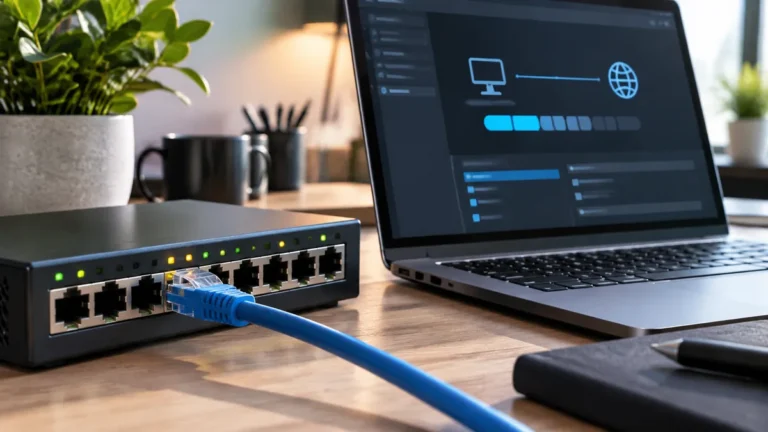
- Fast wired uplinks: a multi-gigabit wireless link still has to reach the rest of the network through the router’s Ethernet ports.
For a home office, also check whether your mesh system uses Ethernet backhaul. A wired backhaul can matter more than a new wireless label when the node is far from the main router. TechRankly explains that trade-off in Ethernet backhaul vs. wireless backhaul.
How to test MLO without guessing
- Update the router and client firmware.
- Record the client’s link speed and latency on a normal single-band connection.
- Enable the router’s MLO network using the manufacturer’s recommended setting.
- Reconnect the client and repeat the same local file-transfer and internet tests.
- Test from the same room and at the same time of day.
- Check whether the improvement appears only in a speed test or also during a video call, cloud sync, or large local transfer.
If MLO performs worse, turn it off temporarily and compare again. A partial implementation, weak 6 GHz signal, or older client driver can make ordinary single-band Wi-Fi more consistent.
Who should care about MLO today?
MLO is worth understanding if you are buying a Wi-Fi 7 router, replacing a busy home-office network, or using newer laptops and phones that support Wi-Fi 7. It is less compelling as a reason to replace a perfectly stable Wi-Fi 6 system that serves a modest internet plan.
Prioritize placement, wired backhaul, client compatibility, and the router’s Ethernet ports before paying extra for a feature you cannot use.
Bottom line
Wi-Fi 7 MLO lets a compatible router and client coordinate multiple wireless links. It can improve reliability, latency, and local throughput, but it does not automatically double your internet speed. The practical result depends on the exact devices and the environment in your home.
How to decide whether MLO matters in your home
Multi-Link Operation is most useful when both the access point and client can use the supported links together. The presence of a Wi-Fi 7 router alone does not guarantee that every phone or laptop will use MLO.
| Situation | What MLO may help with | What to check |
|---|---|---|
| Wi-Fi 7 router + Wi-Fi 7 client | More flexible use of available bands and improved connection behavior | Whether both devices support the same MLO mode |
| Wi-Fi 7 router + older client | Little direct MLO benefit for that client | Client generation and supported bands |
| Busy home with several active devices | Potentially better use of multiple links | Interference, placement, and client support |
| Slow internet service | May not change the ISP speed limit | Separate local Wi-Fi performance from internet throughput |
Test the local wireless link before buying again
If you are deciding whether MLO solved a real problem, compare the same device in the same room before and after enabling it. Use a local transfer or another repeatable test when possible, because an internet speed test also includes the ISP connection. Repeat the test at the time of day when the problem normally occurs.
Also check whether the improvement is consistent. A single fast result can come from changing interference rather than from MLO itself. The useful outcome is a repeatable improvement in the workload you actually care about—video calls, local file transfers, gaming latency, or another daily task.