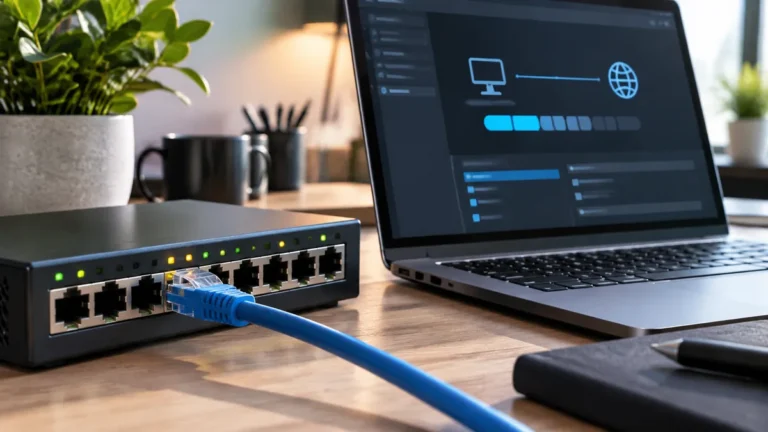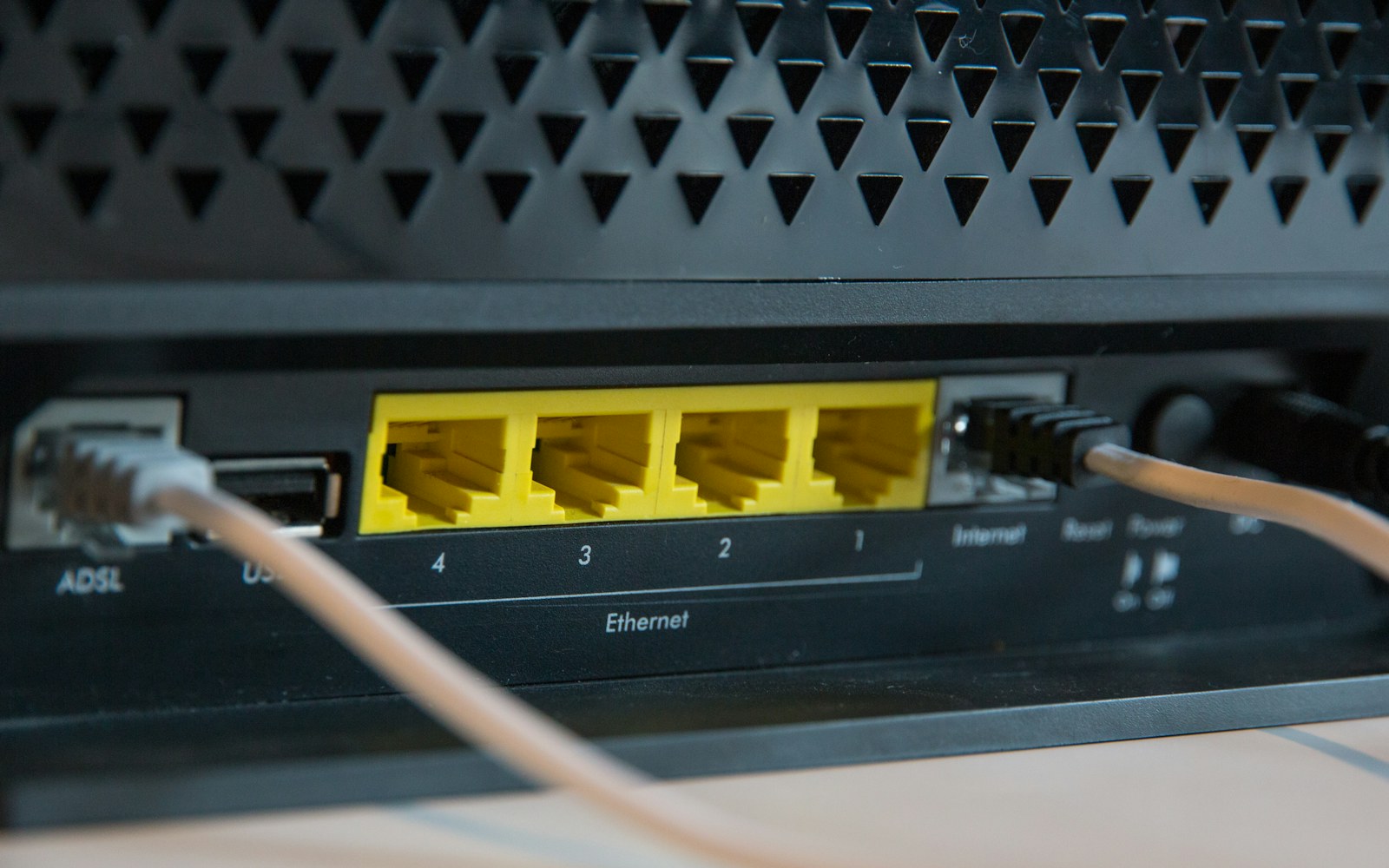
What Ethernet changes
A cable gives the laptop a wired local connection. It does not bypass the internet provider, meeting platform, remote participant, or computer performance limits. If the cable goes into a mesh satellite, inspect the satellite’s backhaul before calling the whole path wired.
Google includes trying Ethernet in its meeting-quality troubleshooting recommendations. That makes it a useful diagnostic step even if you ultimately prefer wireless convenience.
Compare the same workload
Use the same laptop, meeting application, camera settings, and working location. Test under similar household usage rather than comparing unrelated speed-test screenshots. Note audio dropouts, frozen video, screen-sharing clarity, and whether the application responds normally.
If you have an Ethernet adapter, confirm that it is recognized and the cable is connected to the intended network. Temporarily disconnect Wi-Fi during the controlled test if your workplace rules allow it, so the connection path is unambiguous. Reconnect normally afterward.
| Situation | Reasonable next step |
|---|---|
| Permanent desk beside a wired port | Test Ethernet before buying new wireless equipment |
| Move frequently between rooms | Improve Wi-Fi coverage and test handoff behavior |
| Calls fail on both connections | Investigate shared traffic, internet service, and the computer |
| Only one mesh location is poor | Inspect node placement and backhaul |
Check upload and simultaneous use
Meeting traffic is not just a download. Sending camera video and screen content needs upstream capacity. Microsoft’s Teams network documentation separates upload and download requirements and explains that usage varies by meeting mode and quality.
A household running several calls, cloud backups, and large uploads may have different constraints from one person browsing alone. Scheduling a nonurgent upload for later can be a more relevant improvement than replacing a router.
Choose an adapter carefully
If the laptop lacks an Ethernet port, verify that the adapter supports the operating system and that any required drivers are acceptable for the device. For a dock-based connection, include the dock’s upstream USB path in the assessment. If Windows does not recognize the dock’s wired interface, follow our USB-C dock Ethernet troubleshooting guide for Windows 11.
A USB-C plug does not establish the adapter’s supported network speed or compatibility. Match the equipment to the required link and use a return window to test reconnect, sleep, and wake behavior. Keep a note of the working adapter and cable for future troubleshooting.
Keep Wi-Fi when it passes the test
If Wi-Fi remains stable during representative calls, there may be little practical reason to add a cable across the room. Better placement or an appropriately configured access point can preserve mobility while improving coverage.
Conversely, if Ethernet repeatedly fixes the same local issue at a permanent desk, that is stronger evidence for keeping it than a theoretical comparison between network standards. Route the cable sensibly so the setup remains convenient and does not create a trip hazard.
For a structured diagnosis, use why video calls freeze. For a mesh setup, read what Ethernet backhaul actually changes. For a combined desk connection, see the USB-C setup guide.
Add Ethernet ports only when you need them
Affiliate disclosure: As an Amazon Associate I earn from qualifying purchases. Some links below are affiliate links. See our affiliate disclosure.
If several wired desk devices must share a supported router-side connection, the TP-Link TL-SG105 five-port Gigabit switch is a candidate. Check availability on Amazon. Check the product specifications and count the uplink among its five ports. If the router already has enough free ports, you do not need this purchase.
The switch does not repair an overloaded internet service or act as a Wi-Fi adapter. For a desk stream, use the streaming budget comparison; for mobile production, the IShowSpeed tour analysis explains why a home Ethernet device is not an equivalent transmission system.
A practical way to decide whether Ethernet is worth running
The question is not whether Ethernet is faster than Wi-Fi in every situation. The better question is whether a wired connection solves the problem you are actually experiencing. For a fixed home-office desk, Ethernet can reduce one major variable: the wireless link between the computer and the network. That can make performance more predictable even when the internet service itself has not changed.
Look for symptoms that point to the local network
If video calls freeze only in one room, large file transfers fluctuate while other devices are busy, or latency changes dramatically when someone moves between rooms, the local wireless environment deserves attention. Interference, distance, walls, channel use, and the client’s Wi-Fi hardware can all affect the result.
A speed test alone is not enough. Run the test where the computer normally sits and repeat it at different times. If possible, compare the same computer over Ethernet and Wi-Fi. The useful measurement is not just the highest download number; look at consistency, latency, upload performance, and whether the connection behaves differently during a real call or file transfer.
| Situation | Ethernet value |
|---|---|
| Fixed desktop | High; cable removes the local Wi-Fi hop |
| Laptop used around the house | Lower; Wi-Fi mobility may matter more |
| Large local file transfers | Often high |
| Weak signal in one room | High if a cable can reach the desk |
Ethernet does not fix every internet problem
A wired computer can still have slow internet if the service is congested, the router is overloaded, the upstream provider has a problem, or the remote server is slow. Ethernet also does not automatically improve the Wi-Fi experience of phones and other wireless devices.
Use a direct comparison before spending money
If your router already has an Ethernet port and the computer has a suitable adapter, a temporary cable test can answer the question before you buy permanent hardware. Compare the same activity under similar conditions. If the call becomes stable or large transfers become consistent, the cable has demonstrated value. If nothing changes, look beyond Wi-Fi before spending more.
For mesh networks, wired backhaul can provide another benefit by moving traffic between nodes over Ethernet instead of another wireless hop. See how to check Ethernet backhaul and mesh versus extender if the coverage problem affects more than one room.
The best home-office setup is the one that matches how the desk is used. A fixed workstation that handles meetings, large uploads, cloud storage, or local file transfers is a strong candidate for Ethernet. A laptop that moves constantly may benefit more from improving Wi-Fi coverage than from running a cable everywhere.
Repeat the comparison under load
Test Wi-Fi and Ethernet at the desk during a real meeting and while another device uploads a large file. Record latency, jitter, packet loss, and connection statistics. The result should explain the failure you are trying to remove.
How to verify the recommendation
- Write down the exact model, software version, cable, port, plan, or setting involved.
- Start with a known-good baseline and change one variable at a time.
- Repeat the check under the normal workload, including connected devices or busy periods.
- Record the result, the limitation, and the condition that produced it.
- Keep a fallback, restore step, or recovery copy before making the change permanent.
Use the manufacturer’s current documentation for model-specific limits and safety instructions. Product names and headline specifications do not establish compatibility by themselves. If the result changes after an operating-system, firmware, plan, or account update, repeat the same baseline and compare the new evidence with the previous record.
Before publishing or purchasing, review the decision against budget, workload, compatibility, maintenance, privacy, and recovery. A solution that passes a single benchmark but fails during sleep, restore, sharing, deletion, or a normal busy-day workload is not ready. Keep the notes with the setup so another person can reproduce the check without guessing.
This evidence-based process adds practical value beyond a specification summary. It shows what to measure, which trade-offs matter, and what to do when the result is different from the expected outcome.