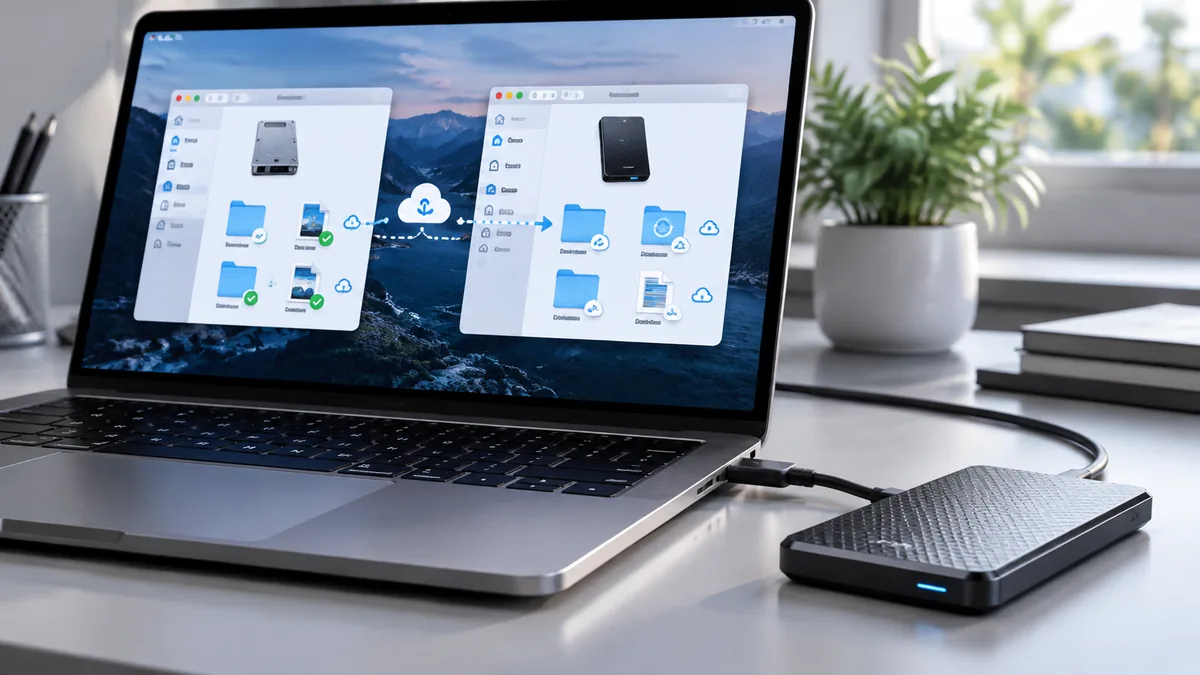
Keeping a OneDrive library on an external SSD can free space on a MacBook, but syncing depends on the drive remaining available and meeting Microsoft’s requirements. When OneDrive reports “Your OneDrive folder can’t be found” or remains stuck on “Processing changes,” check the drive format, encryption, mount state, and OneDrive version before deleting or moving files.
Microsoft’s current guidance says removable external drives are supported with OneDrive for Mac version 25.127 or later on macOS 15 or later, provided the selected volume is formatted as APFS, protected by FileVault, writable, and not a network drive or quarantined by macOS.
What the common errors usually mean
| Symptom | What to verify |
|---|---|
| “Your OneDrive folder can’t be found” at sign-in | The SSD mounted under the expected name before OneDrive started |
| “OneDrive can’t be set up in this location” | APFS format, FileVault protection, supported app version, and write access |
| Sync stalls after sleep | Whether the SSD, cable, hub, or dock briefly disconnected |
| Files will not download or open | OneDrive version, macOS permissions, available disk space, and File Provider status |
Step 1: Check the SSD format, encryption, and app version
- Open Applications → Utilities → Disk Utility and select the external volume.
- Confirm the format is APFS. Microsoft’s removable-drive support also requires FileVault protection and a supported version of OneDrive and macOS.
- Open OneDrive’s settings or About panel and confirm the app is current.
Important: Erasing or reformatting a drive deletes its contents. Before changing the format, make a verified copy of all files that are not safely backed up elsewhere. Do not erase the SSD just to test a sync error. If you decide to reformat, choose a compatible APFS format and enable encryption through Finder as Microsoft documents.
Step 2: Confirm that macOS mounted the correct volume
Open Finder and make sure the SSD appears under its expected name. If you are comfortable with Terminal, run this read-only command:
ls -la /VolumesLook for an unexpected duplicate such as WorkSSD 1. A duplicate name can indicate that macOS remounted a volume after a disconnect, while an application still expects the previous path. Do not delete folders from /Volumes or run privileged removal commands unless you have confirmed exactly what they contain. First quit OneDrive, eject the drive normally, restart the Mac, reconnect the SSD directly to the computer, and check the mounted name again.
Step 3: Check power, cables, and macOS permissions
- Connect the SSD directly to a Mac port for testing, bypassing an unpowered USB-C hub.
- Try a known-good cable and avoid unplugging the drive while OneDrive is syncing.
- Open System Settings → General → Login Items & Extensions and check that OneDrive’s background and File Provider components are enabled where those options are available.
- If macOS explicitly reports a permission problem, review Privacy & Security and grant only the access required for OneDrive to work.
Do not grant broad permissions or change security settings without a reason. If a macOS upgrade appears to have changed access, restart OneDrive and macOS before changing multiple privacy controls.
Step 4: Relink OneDrive without deleting your files
- Confirm the external SSD is mounted and unlocked.
- Open OneDrive settings and choose Account → Unlink this Mac only if the app cannot reconnect normally.
- Quit OneDrive completely and reopen it. If it still will not initialize, follow Microsoft’s official OneDrive sync troubleshooting steps, including the reset script if appropriate for your installed version.
- Sign in and choose the existing supported APFS location when the setup screen asks where to place the OneDrive folder.
Do not delete the existing OneDrive folder as a first step. Relinking and indexing can take time, and OneDrive may need to verify files or download online-only content. Keep a separate backup before making changes to the sync relationship.
Step 5: Prevent future disconnects—and keep a real backup
Use a reliable cable, a powered dock if needed, and a stable connection. If the drive disconnects whenever the Mac sleeps, test with the SSD connected directly and review the Mac’s power settings. Reconnect the drive and restart OneDrive if syncing pauses after an accidental unplug.
OneDrive is a synchronization service, not a complete independent backup. Deletions, unwanted edits, or encrypted files can sync to the cloud. Keep a separate backup with version history or another recovery method. For more on external storage and connection standards, see TechRankly’s USB4 vs. Thunderbolt 4 guide and its guide to OneDrive vs. backup.
Frequently asked questions
Can I use an exFAT SSD for OneDrive on a Mac?
Microsoft’s supported external-drive setup requires APFS and FileVault protection. Do not reformat an exFAT drive until you have backed up its contents and confirmed that the change fits your Windows/Mac workflow.
Will relinking download every file again?
Not always. OneDrive may index existing content, verify files, or download online-only items. The exact process depends on the app version and the state of the local sync relationship.