Follow a file through an ordinary mistake
Imagine deleting the wrong project folder on a laptop. A synchronization service may reproduce that deletion elsewhere as part of keeping devices consistent. You might be able to recover it from a recycle bin or version history, depending on the service and account settings. The question is whether that recovery path exists when you need it.
A copy on another screen is not necessarily independent. If both locations follow the same changes and rely on the same account, they may share failure modes. Draw a short list of where your files live and what controls each copy.
Ask recovery questions instead of counting cloud icons
| Scenario | Question to verify |
|---|---|
| Accidental deletion | How long can deleted files be restored? |
| Bad edit or overwritten document | Are earlier versions available, and for how long? |
| Lost laptop | Can you regain account access without that device? |
| Damaged or encrypted files | Is there a clean copy outside the affected path? |
| Service cancellation | Can you export and restore the files independently? |
Record the answers from the provider’s current documentation and your own settings. Account tiers and administrative policies can change what is retained. Do not rely on the most generous feature advertised for a plan you do not have.
Build a small, recoverable arrangement
For a personal work setup, consider an active working location, an automatic backup destination, and a separate copy protected from the same everyday mistakes. The appropriate products depend on the volume of data and the devices you use. This is a planning pattern, not a guarantee against every loss.
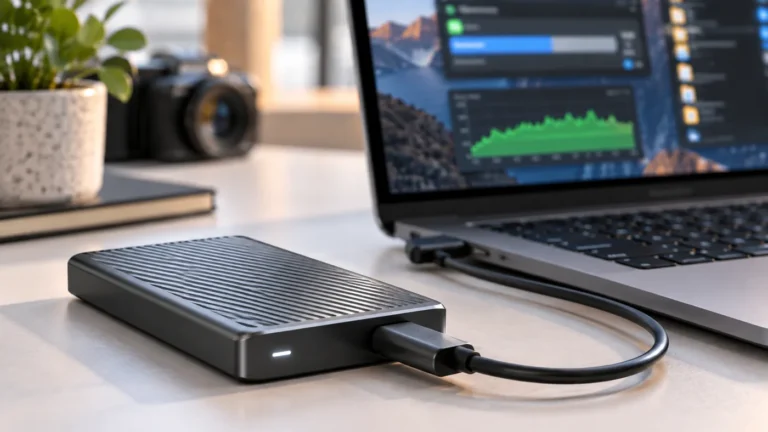
On a Mac, Time Machine is one documented option for creating and restoring backups. Read the setup requirements, allow the first backup to complete, and confirm that the external location contains the files you expect. External working drives may need their inclusion settings checked separately.
Test a restore before you trust the system
- Create a small folder of noncritical test files.
- Wait for the intended backup to finish.
- Restore a copy to a different folder, following the application’s instructions.
- Open the recovered files and check their contents.
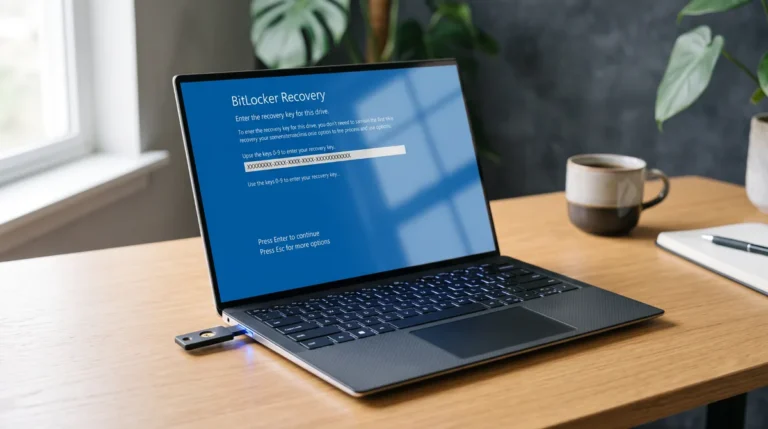
- Record the steps and where any recovery keys are stored securely.
- Repeat after changing the backup application, destination, or major account settings.
A green status icon confirms a process reported success; a restore test confirms something more useful about your ability to recover. Do not delete the originals just to make the test feel realistic.
Include account recovery in the plan
A cloud copy is less useful if the only device that can sign in is lost. Review the provider’s account-recovery options and keep recovery information in an appropriate secure location. For a business, assign an owner to the backup process so it does not depend on one employee’s memory.
Match the schedule to the amount of work you can afford to recreate. A weekly copy may be insufficient if a project changes every day. Keep an eye on backup failures and capacity rather than assuming the original setup will keep working indefinitely.
For hardware selection, start with choosing an external SSD. For a disk shared between computers, read APFS versus exFAT before changing its format.
Keep session recordings recoverable
For a creator retaining full sessions, count the original recordings, edited exports and another recoverable copy as separate needs. The $1,000 streaming accessories plan includes working storage, but that line alone is not a backup system. Our CaseOh gear analysis separates functional recording costs from cosmetic PC purchases.
Build a backup workflow around failure, not just synchronization
Sync is useful because it keeps working files available across devices. Backup is useful because it gives you another copy to recover when something goes wrong. The difference becomes obvious when a file is accidentally deleted, corrupted, overwritten, encrypted by malware, or removed from the synchronized location. A change can be synchronized successfully and still be exactly the change you wish you could undo.
Give each copy a job
A simple setup can have a primary working copy, a synchronized copy for convenience, and a separate backup copy for recovery. The backup should not depend on the same failure that could affect the working files. For example, if every copy lives in one account or on one physically connected drive, the number of copies can look impressive while the actual recovery protection remains weak.
| Copy | Main purpose | Typical failure it helps with |
|---|---|---|
| Working files | Daily work | None; this is the source |
| Sync | Availability | Device loss or access from another device |
| Backup | Recovery | Deletion, corruption or account/device problems |
Test recovery before you need it
A backup is only useful if you can restore from it. Pick a small folder, delete the local copy, and practice recovering it from the backup system. Check file names, dates, folder structure, and whether older versions are available. This exercise can expose a surprising problem: the system may be synchronizing files correctly while not retaining the historical copy you expected.
Think about the files that change most
Documents and spreadsheets may need a different retention approach from large video projects. Creators, for example, may keep project files, source footage, exports, and audio assets. Because those files can consume substantial space, decide what must remain immediately available and what can be archived.
Do not use a single large SSD as the only recovery plan. External storage can fail, be lost, or be damaged. A second copy in a different location can be more valuable than buying a faster drive with no recovery path.
Review sharing and account access
Cloud services also introduce account-level risks. Review who can access shared folders, which devices are signed in, and how you would recover access if the primary account became unavailable. If a team member leaves, remove access rather than assuming the old link is harmless.
For storage planning, use our capacity guide to estimate how much space your working files actually require. If you are comparing external drives, the SSD selection guide explains why paying for higher advertised speed may not improve a workflow limited by the computer, interface, or source files.
Give sync and backup different jobs
Sync keeps a working set similar across devices. Backup must provide a recoverable point in time after deletion, encryption, or a mistaken edit. Set retention for daily and monthly versions, confirm how deleted items are counted, and protect administrator accounts with multi-factor authentication. Restore a small project to a new folder and verify names, dates, versions, and permissions. If the recovery steps depend on memory, the plan is not ready.
Practical verification checklist
- Write down the exact models, operating-system versions, cables, and settings involved.
- Start with a known-good baseline, then change one component at a time.
- Repeat the check under the workload that matters, not only in an empty setup.
- Record the result, the limitation, and the condition that produced it.
- Keep a fallback or recovery step before making the change part of daily work.
Use the manufacturer’s current documentation for model-specific limits and safety instructions. Do not infer compatibility from a product name alone. If the result changes after an operating-system, firmware, plan, or account update, repeat the same baseline and compare the new evidence with the old record. This makes the recommendation useful beyond a single specification sheet and gives the reader a practical way to verify it on their own equipment.
Before publishing or purchasing, review the decision against the real constraints: budget, workload, compatibility, privacy, maintenance, and recovery. A solution that meets one benchmark but fails during sleep, restore, sharing, or a normal busy-day workload is not ready. Keep the notes with the setup so another person can reproduce the check without guessing.