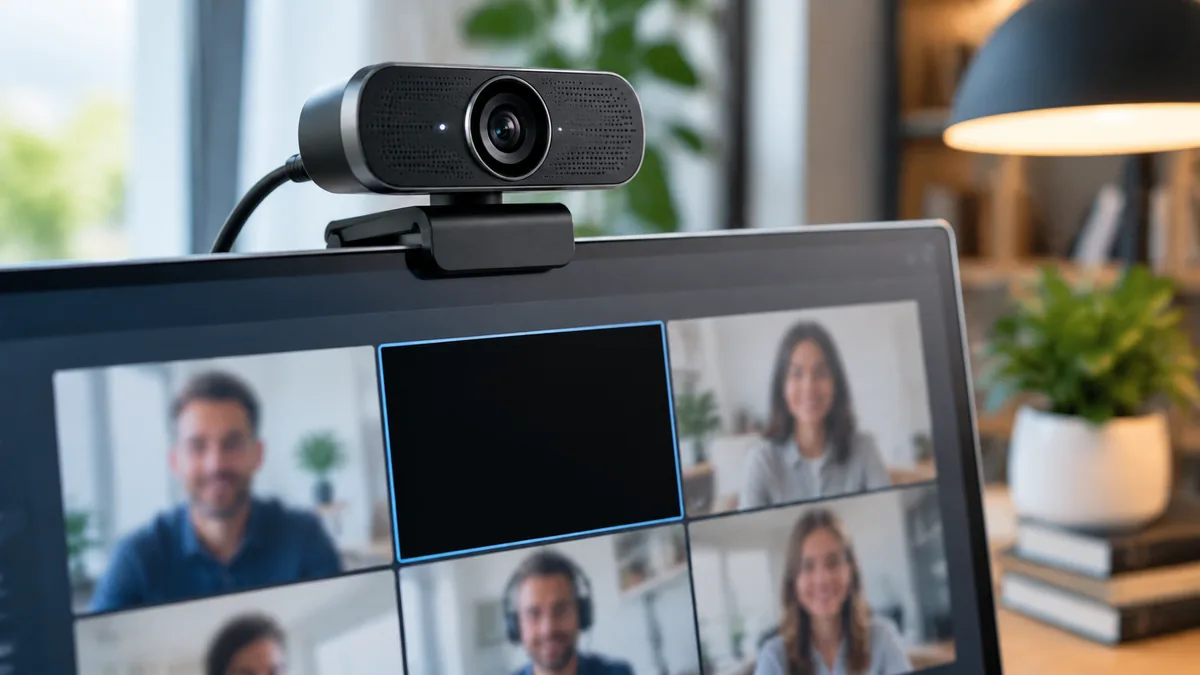
Upgrading from a grainy built-in laptop camera to an external 1080p or 4K USB webcam should make video calls effortless. Instead, many remote professionals find that their external webcam freezes into a still frame five minutes into a Microsoft Teams or Zoom call, flickers with purple or green lines, or shows a completely black preview window while the microphone on the same camera keeps working.
When an external webcam fails intermittently, replacing the camera rarely solves the problem.
Video streams use isochronous USB transfers—a time-sensitive data mode that drops out the instant a USB hub runs out of controller bandwidth or another background app claims an exclusive hardware lock. Follow these seven technical fixes to stabilize your camera across Windows 11 and macOS.
Diagnose whether the fault is a software lock, a privacy block, or a USB bottleneck
Before changing settings inside Zoom or Teams, observe how the camera fails. Different visual symptoms point to completely different layers of your operating system.
| Camera Symptom During Calls | Root Technical Cause | Immediate Fix to Apply |
|---|---|---|
| Pure black box (camera LED light turns ON) | Physical lens shutter closed, antivirus webcam shield active, or hardware acceleration bug | Check physical slider, disable 3rd-party antivirus camera guard, or toggle GPU hardware acceleration |
| Pure black box or "Camera not detected" (LED stays OFF) | OS privacy toggle blocked desktop apps, or another app holds an exclusive hardware lock | Enable Camera access in OS Privacy settings and close background utilities (Logi Tune, OBS, browser tabs) |
| Video works for 5–10 minutes, then freezes on a single frame | USB Root Hub bandwidth saturation or Windows USB selective suspend cutting port voltage | Move camera off multi-device USB hubs and disable power saving on the USB Root Hub |
| Image stutters, flickers at 50Hz/60Hz, or drops to 360p | Uncompressed YUY2/NV12 stream hitting a USB 2.0 cable limit or fluorescent lighting conflict | Switch video encoding or use a direct USB 3.2 port; match anti-flicker setting to local power grid (50Hz/60Hz) |
Fix 1: Release exclusive camera locks held by background apps and Windows Frame Server
By default, a USB webcam can only deliver its raw hardware video stream to one application at a time unless routed through an operating-system virtual frame server. If you left a Google Meet tab open in Chrome, have OBS Studio or Nvidia Broadcast running in the system tray, or left the Windows Camera app open, Microsoft Teams and Zoom will show a black screen.
Check who is currently using the camera in Windows 11: Open Settings > Privacy & security > Camera.
Scroll down to the list of applications; Windows displays the exact phrase Currently in use in red or accent text right underneath whichever program is holding the camera open.
Restart the Windows Camera Frame Server service: If an app crashed earlier, it can leave a zombie lock on the webcam.
Press Windows + R, type services.msc, locate Windows Camera Frame Server, right-click it, and select Restart.
Avoid running vendor companion bloatware during calls: Utilities like Logi Tune, Logitech G HUB, Razer Synapse, or Elgato Camera Hub apply virtual filters by intercepting the camera feed. If your webcam freezes mid-call, quit the vendor companion utility completely and select the raw hardware camera name (for example, Logitech Brio) directly inside Zoom or Teams rather than the virtual camera filter.
Fix 2: Solve the USB Root Hub bandwidth ceiling on docking stations
This is the number-one hardware cause of webcams freezing mid-sentence. Even a USB-C or Thunderbolt dock has an internal USB hub topology that funnels multiple USB-A and USB-C ports through a single internal host controller.If you plug a 1080p 60fps or 4K webcam, a USB condenser microphone or headset, and an external SSD into the same USB hub cluster on your dock, the combined isochronous transfers exceed the controller’s periodic endpoint allocation.
The audio continues because it uses tiny packets, while the webcam freezes onto its last frame. Separate the webcam from USB audio and storage: Plug your webcam into a dedicated port on your laptop, or into the front/host-routed USB-C port on your dock while moving your USB headset dongle or keyboard to the rear USB 2.0 ports.
Check for USB 2.0 adapter bottlenecks: Many cheap USB-C-to-USB-A adapters sold online only wire the four central USB 2.0 (480 Mbps) pins instead of the nine pins required for USB 3.2 Gen 1 (5 Gbps). A 4K webcam plugged through a USB 2.0 adapter will overheat, compress heavily, or freeze under load.
For more on dock bandwidth management, read our guide on External Monitor Flickering Through a USB-C or Thunderbolt Dock.
Fix 3: Disable USB Root Hub power management in Device Manager
When you are listening to a presentation on a long call without touching your keyboard, Windows 11 may briefly reduce voltage to USB controllers, causing the webcam’s internal ISP (Image Signal Processor) chip to drop its connection.
Right-click Start and open Device Manager.
Expand Cameras (or Imaging devices), right-click your webcam, and ensure Roll Back Driver is not needed or update it to the standard USB Video Device (UVC) Microsoft driver if a vendor driver is crashing.
Scroll down and expand Universal Serial Bus controllers.
Double-click each USB Root Hub (USB 3.0) and Generic SuperSpeed USB Hub, open the Power Management tab, and uncheck Allow the computer to turn off this device to save power.
Fix 4: Enable the registry "EnableFrameServerMode" workaround on Windows 11
On certain Windows 11 24H2, 25H2, and 26H2 systems, older UVC 1.1 webcams fail to negotiate modern YUY2/MJPEG streams through the Windows Media Foundation pipeline, resulting in a permanent black screen inside Teams or Zoom.
Close all video-calling apps.
Press Windows + R, type regedit, and press Enter.
Navigate to: HKEY_LOCAL_MACHINE\SOFTWARE\Microsoft\Windows Media Foundation\Platform Right-click in the right pane, select New > DWORD (32-bit) Value, and name it EnableFrameServerMode.
Double-click EnableFrameServerMode, keep its value data set to 0, and click OK.
Restart your PC and test the camera inside Zoom or Teams. (If you ever need to revert to default Windows behavior, simply delete that DWORD key).
Fix 5: Adjust video rendering and hardware acceleration inside Zoom and Teams
Sometimes the camera hardware is streaming perfectly, but your graphics driver fails to render the video overlay inside the calling application.In Zoom: Open Settings > Video > Advanced. Change Video Rendering Method from Auto to Direct3D11 (or GDI on older integrated graphics), and uncheck Use hardware acceleration for receiving/sending video if your screen flashes green or black.In Microsoft Teams: Open Settings > Devices, turn off high-CPU background blur or AI studio effects temporarily, and ensure your display driver is up to date.
Fix 6: Fix macOS Camera Continuity and permission resets
On a MacBook running macOS 26 or macOS 27, Apple’s Continuity Camera feature can hijack your video input dynamically whenever your iPhone is sitting horizontally on a MagSafe stand near your desk, causing your wired USB webcam to drop out in the middle of a call.
Disable Continuity Camera if you use a dedicated USB webcam: On your iPhone, go to Settings > General > AirPlay & Continuity and toggle Continuity Camera to Off.
Verify macOS Screen & Camera permissions: On your Mac, open System Settings > Privacy & Security > Camera and make sure both Zoom and Microsoft Teams are switched on.
For additional remote-work setup guides, browse our Home Office category.