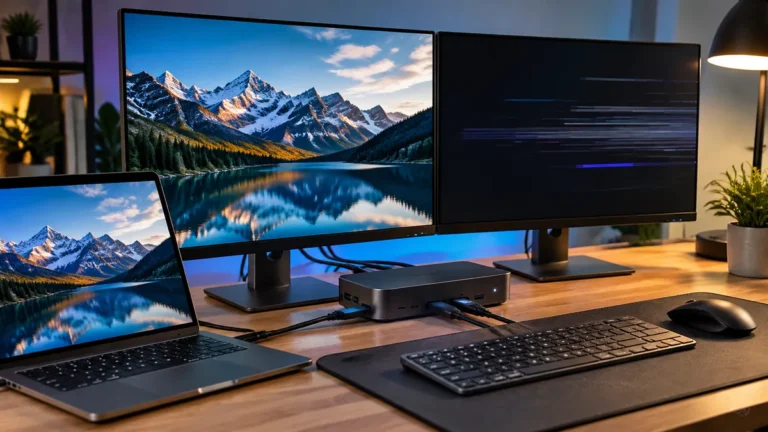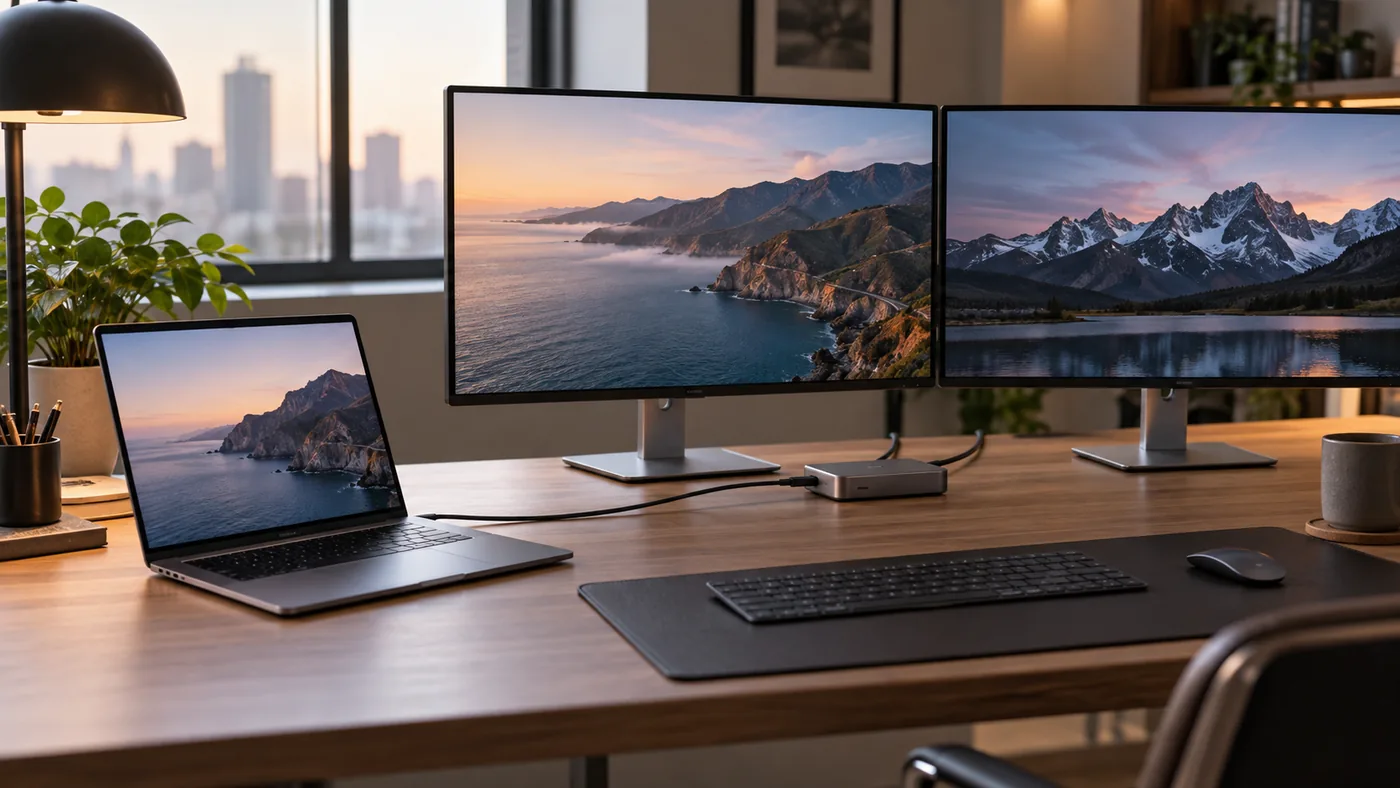
A one-cable desk sounds straightforward: plug one Thunderbolt cable into the MacBook Air, and let a dock handle two monitors, Ethernet, USB devices, and charging.
The problem is that “one cable” and “two displays” are separate questions. The dock has to support the displays, but the MacBook Air also has to support the number of active external displays you want.
That answer changes dramatically by chip generation.
Quick answer
| MacBook Air | External displays | Built-in display | Key limitation |
|---|---|---|---|
| M5 | Up to 2 | Yes | Dock and display combination still matters |
| M4 | Up to 2 | Yes | Check dock/macOS support |
| M3 | Up to 2 | No, when using 2 external displays | Lid must be closed |
| M2 | 1 native | Yes | Two external displays require a workaround such as DisplayLink |
For the M5 MacBook Air, Apple explicitly says the computer can support up to two external displays over a single Thunderbolt port, while the built-in display stays active.
The M4 MacBook Air supports two external displays plus the built-in display, although your exact one-cable dock configuration still depends on the dock’s architecture and monitor combination.
The M3 MacBook Air supports two external displays only when the laptop lid is closed.
The M2 MacBook Air natively supports one external display.
That means the same “dual-monitor Thunderbolt dock” can produce very different results on four MacBook Air generations.
M5: the cleanest one-cable story
Apple’s M5 specifications are unusually clear.
The M5 MacBook Air supports:
- up to two external displays,
- the built-in display at the same time,
- and up to two external displays through one Thunderbolt port.
For a desk setup, this is exactly the behavior many people expected from earlier Air models.
The practical limit is now more likely to be the dock, cable, and display combination than the Mac’s display count.
M4: two external displays with the laptop open
Apple documents the M4 MacBook Air as supporting up to two external displays simultaneously in addition to the built-in display.
That means the M4 no longer has the M3’s requirement to close the lid to activate the second external screen.
If your M4 only produces one extended display from a dual-output dock, the first thing to check is the dock’s macOS implementation rather than assuming the Mac cannot drive two screens.
M3: two external displays, but only with the lid closed
The M3 Air is the awkward middle generation.
Apple says you can connect two external displays simultaneously when you close the lid. When both external screens are connected, opening the lid can cause the secondary external display to go dark or disconnect.
That means a dock may be physically capable of two displays, but the M3’s supported topology still dictates how you use them.
For someone who wants the MacBook’s built-in display as a third screen, M3 is not equivalent to M4 or M5.
M2: the native limit is one
The M2 MacBook Air supports one external display up to 6K at 60Hz.
A dock with two physical display connectors does not change that native limit.
If you see an M2 Air running two or three external screens, there is usually another technology involved, commonly DisplayLink. That can be useful, but it is a software-driven virtual-display approach, not the same thing as native Thunderbolt display support.
TechRankly covers those trade-offs in M1 or M2 MacBook Air With Two Monitors: When DisplayLink Is the Right Workaround.
Why some docks mirror instead of extend
A dock can expose two HDMI or DisplayPort connectors but still fail to provide two independent extended desktops on macOS.
One reason is that some multi-monitor USB-C docks rely on Multi-Stream Transport behavior that is common on Windows but does not translate into the same multi-display experience on macOS.
Other docks use Thunderbolt to expose multiple native display streams.
Others use DisplayLink.
Those three product categories can look nearly identical in a store listing.
The important part is the implementation, not the number of ports printed in the product photo.
What to look for before buying
For a MacBook Air desk, a good dock listing should answer all of these:
- Does it support macOS?
- Does it support two extended displays, not only mirrored displays?
- Does that support apply to your exact Mac chip?
- Does it require DisplayLink software?
- What are the maximum resolutions and refresh rates with both outputs active?
- Does it use Thunderbolt/USB4 or plain USB-C?
- How much charging power reaches the laptop?
If the manufacturer only shows a generic “dual monitor” badge with no Mac-specific matrix, that is not enough information.
Direct-connect test before blaming the dock
If a display does not work through the dock, connect it directly to the MacBook Air.
Apple specifically recommends testing a display directly on the Mac when it is dark or not operating at the expected resolution through a hub or dock.
This divides the problem into two parts:
If the display works directly, the Mac, monitor, and basic cable path are likely okay. Investigate the dock.
If the display fails directly too, investigate the cable, adapter, monitor input, macOS settings, and the display’s supported modes.
That one test prevents a lot of unnecessary dock returns.
Is one port better than using two?
Not automatically.
A one-cable dock is cleaner, especially if you carry the laptop away from the desk every day.
Two direct monitor connections can be simpler technically because there is less hardware between the Mac and each display.
Choose the one-cable setup for convenience. Choose direct connections when you care more about the simplest video path or are troubleshooting an unstable dock.
Bottom line
A Thunderbolt dock cannot be evaluated separately from the MacBook Air generation connected to it.
M5 offers the clearest one-port, two-display support. M4 supports two external displays with the built-in display active. M3 requires the lid closed for two external displays. M2 is natively limited to one external display.
Before buying a dock, identify the chip first. That one detail tells you more than the number of HDMI ports on the box.
What to verify before buying the dock
The MacBook chip determines the native display ceiling, but the dock and monitors still determine how that capability is delivered at the desk. Check the exact display mode for the dock rather than assuming that two video outputs mean two independent displays at the resolution and refresh rate you want.
| Check | Why it matters |
|---|---|
| MacBook chip | Sets the native external-display capability |
| Dock display architecture | Determines how the dock exposes multiple screens |
| Monitor resolution and refresh rate | Defines the bandwidth each display requires |
| Cables | A cable can become the limiting link |
| Other peripherals | USB storage and Ethernet can share the same upstream path |
Test the intended combination before the return period ends. If a display works directly from the Mac but not through the dock, that is useful evidence. It narrows the problem to the dock path instead of suggesting that the MacBook itself cannot drive the screen.
Official sources
- https://support.apple.com/en-ie/126320
- https://support.apple.com/en-us/122212
- https://support.apple.com/en-us/118551
- https://support.apple.com/es-co/111867
- https://support.apple.com/en-au/102501