Start with what stays on the desk
If your accessories live in a laptop bag, a compact hub is easier to carry. If your monitor, Ethernet, keyboard, audio interface, and storage stay connected all day, a dock with its own power supply may make more sense. Count the connections you need simultaneously rather than buying the highest advertised port count.
A monitor with a USB-C upstream connection and suitable charging can also be the center of a simple workstation. This option deserves consideration if you are replacing a display anyway. You still need to verify its video, charging, and downstream USB capabilities.
| Your situation | Start by evaluating | Watch for |
|---|---|---|
| Travel, one monitor, mouse receiver | Compact USB-C hub | Cable length, pass-through power, display mode |
| Permanent desk, many accessories | Powered docking station | Computer support, power supply, simultaneous outputs |
| New monitor, simple setup | Monitor with USB-C hub | Charging output and USB bandwidth while displaying video |
| Existing setup already works | Keep separate connections | Whether one-cable convenience justifies the cost |
Compare the upstream connection
All traffic back to the laptop uses the upstream connection. Several fast-looking ports do not each have an independent path of unlimited capacity. A drive copy, webcam, and network transfer may compete for resources. The exact behavior depends on the dock architecture and operating mode.
Read the manual for video support, USB transfer modes, and any bandwidth changes when additional displays are connected. If you copy large project folders during meetings, that combined workload is a more useful test than the number printed next to one port.
Treat charging as a separate purchase criterion
A bus-powered hub draws power from the laptop unless it supports an external power input. A pass-through hub may reserve some incoming power for itself and attached devices. A powered dock often includes a supply, but the total supply rating and the power delivered to the laptop can differ.
Compare the documented laptop output with the computer maker’s charging guidance. Account for the cost of a suitable charger if the hub does not include one. Our USB-C charging checklist explains the common points of confusion.
Ask these questions before ordering
- Does the manufacturer explicitly support my exact computer and operating system?
- Will the intended displays extend independently at the required settings?
- Is the upstream cable included and replaceable?
- Which ports support data, charging, or video?
- Are drivers or administrator permissions required?
- Can I return it after testing sleep, wake, and reconnect behavior?
Apple’s guide to Mac ports is a useful example of model-specific documentation. For another laptop brand, use its equivalent technical specification rather than transferring assumptions from a Mac or another USB-C computer.
When to skip an expensive dock
Skip the upgrade if it solves only a cosmetic inconvenience and introduces a complicated display path. A direct display cable, original charger, and basic accessory hub can be a practical arrangement. Conversely, the extra cost can be worthwhile if a tested dock reduces daily cable handling and keeps the peripherals you genuinely need connected.
Compare the complete cost: dock or hub, charger, appropriate cables, and any display adapters. Then use our desk setup checklist to test the combination before committing to it.
A hub example, not a universal dock replacement
Affiliate disclosure: As an Amazon Associate I earn from qualifying purchases. Some links below are affiliate links. See our affiliate disclosure.
For a portable single-monitor arrangement, consider the Anker 555 USB-C Hub (A8383). Check availability on Amazon. Anker documents a maximum 85W delivery to the laptop with a suitable input; the charger is not included. Count that cost before comparing it with a powered dock.
Skip this candidate if you need two HDMI outputs from the hub or a higher documented laptop power budget. A creator desk also needs space for camera, capture and storage connections: compare the $750 camera-and-recording plan before assuming that more sockets solve every requirement.
How to match the hub or dock to the desk you actually have
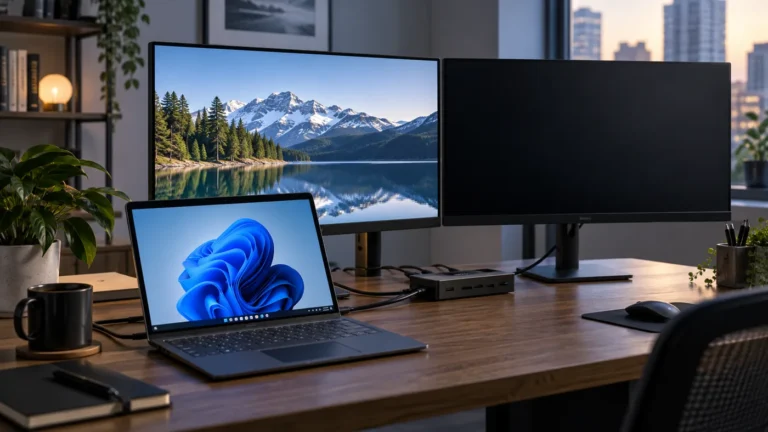
The hub-versus-dock decision becomes much easier when you list the devices that need to stay connected at the same time. A small USB-C hub can be excellent for travel or a simple laptop setup. A docking station makes more sense when the desk needs several permanent connections, especially multiple displays, Ethernet, storage, audio, and power.
Count simultaneous connections
Write down everything you expect to connect: monitor or monitors, keyboard, mouse, Ethernet, external SSD, webcam, audio interface, SD card, and charger. Then mark which devices must work simultaneously. This matters because a hub with eight ports may still share bandwidth between those ports.
| Desk requirement | Likely fit |
|---|---|
| One monitor + keyboard + mouse | Hub |
| Two monitors + Ethernet + storage | Dock |
| Travel and occasional peripherals | Compact hub |
| Permanent workstation | Docking station |
Look at video and USB limits separately
A dock can have multiple video outputs while still sharing bandwidth with fast USB devices. If you connect an external SSD and two high-resolution displays, the practical result may differ from the result with only one monitor attached. Check the manufacturer’s documented configurations rather than assuming every port can operate at its maximum simultaneously.
Power delivery is another separate specification
The dock’s input wattage and the amount delivered to the laptop are not necessarily the same. If the computer charges slowly through the dock, compare the laptop’s requirement with the dock’s documented power-delivery figure. Our charging guide explains how to isolate the power path.
When a hub is actually the better choice
More hardware is not automatically better. A travel laptop used with one HDMI monitor, a keyboard, and a mouse may be easier to manage with a compact hub. A larger dock adds cost, size, and another power brick. If the extra connections will sit unused, the dock may not provide meaningful value.
When a dock earns its place
A permanent workstation benefits from one connection to the laptop that activates the rest of the desk. This is especially useful when you repeatedly connect several accessories. It can also make troubleshooting easier because the connections are organized around one device rather than several unrelated adapters.
Before buying, compare your requirements with our practical USB-C desk guide. If your priority is two monitors, also review the 4K refresh-rate guide and the dual-4K bandwidth guide. The right choice is the smallest setup that reliably handles the devices you use every day.