Reviewed September 17, 2026. This is a diagnostic guide based on current Microsoft and manufacturer support documentation, not a hands-on test of every dock or Ethernet controller.
Start with the symptom, not with a reset
| What you see | Most useful first check | Likely layer |
|---|---|---|
| No Ethernet adapter for the dock in Device Manager | Dock connection, USB-C path, driver, firmware | USB/dock recognition |
| Adapter exists but says cable disconnected | Cable, router/switch port, link lights | Physical Ethernet link |
| Adapter is connected but there is no internet | IP address, gateway, router, DNS | Network configuration/upstream |
| Ethernet works directly but not through the dock | Dock LAN driver/firmware and upstream USB-C connection | Dock path |
| Ethernet works but is unexpectedly slow | Negotiated link speed, cable, dock specification, upstream connection | Performance, not detection |
1. Check whether Windows sees the dock’s Ethernet controller
Open Device Manager and expand Network adapters. Look for an Ethernet controller that appears when the dock is connected and disappears when the dock is removed. The name may include the controller vendor rather than the dock brand.
If no wired adapter appears, do not spend time changing DNS settings. Windows does not yet have a working network interface to configure. Reconnect the dock directly to the laptop, use the dock’s intended upstream cable, and check for a USB-C or Thunderbolt warning in Windows.
Microsoft documents USB-C warnings such as an unrecognized device or limited USB/Thunderbolt functionality. If Device Manager shows a yellow warning symbol, record the device name and error code before installing anything.
Reference: Microsoft — Fix USB-C problems in Windows.
2. Use a direct Ethernet test to separate the dock from the network
If the laptop has a built-in Ethernet port, or you have another known-good Ethernet adapter, connect the same cable to the same router or switch port without the dock. Keep the network path otherwise unchanged.
If direct Ethernet also fails, the dock may not be the problem. Test the cable and router/switch port. Microsoft specifically recommends checking the Ethernet cable and connection before moving deeper into software troubleshooting.
If direct Ethernet works but the dock path fails, you have isolated the fault to the dock, its USB-C connection, its LAN controller, or the software/firmware that supports it.
3. Read the link lights before changing Windows settings
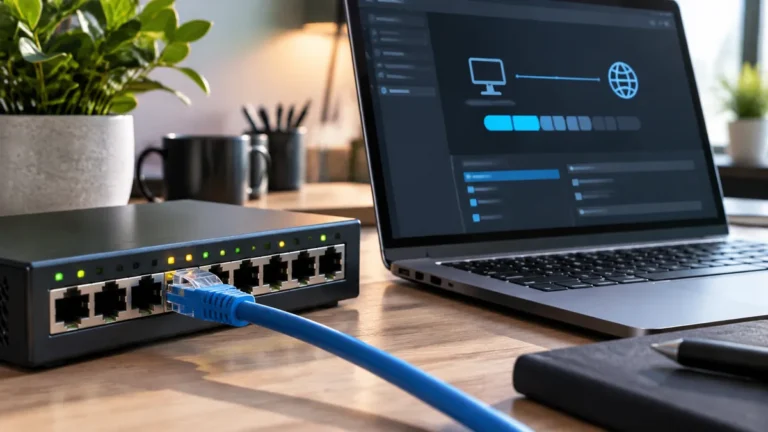
Many docks, switches, and routers have Ethernet link/activity lights. Their exact meaning is product-specific, so use the manual, but the absence of any link indication after reconnecting a known-good cable is useful evidence.
Try another known-good cable and another LAN port on the router or switch if available. Avoid changing the cable, router port, dock, and driver all at once. A controlled test tells you which change matters.
4. Update the exact dock’s LAN driver and firmware
Dock Ethernet is not always handled by a generic Windows driver alone. Some manufacturers publish dedicated LAN drivers or Ethernet firmware for specific docks and Windows versions.
Dell, for example, currently publishes a Realtek USB GBE Ethernet controller driver for multiple dock families and separate firmware guidance for Ethernet failures on certain WD19/WD22 models. Lenovo has also documented a Windows 11 25H2 case where specific Thunderbolt docks show a yellow warning and fail to establish Ethernet until the correct PCIe LAN driver is installed.
The lesson is not to install Dell or Lenovo software on unrelated hardware. It is to visit the support page for your exact laptop and dock model, then install only the driver or firmware that the manufacturer lists for that combination.
- Dell — Realtek USB GBE Ethernet Controller Driver
- Dell — Ethernet does not work on selected docks
- Lenovo — Ethernet failure/yellow warning on selected Thunderbolt docks
5. If the adapter exists, check whether it has a real network configuration
Once the dock Ethernet adapter appears normally in Device Manager and reports a cable connection, the problem becomes a normal Windows networking question. Open Settings → Network & Internet → Ethernet and inspect the connection status.
You can also open Command Prompt and run ipconfig. A normal home or small-office connection usually has an IPv4 address, a default gateway, and DNS information. An address beginning with 169.254 commonly indicates that Windows did not receive an IPv4 configuration from DHCP.
At this stage, test another device on the same network. If multiple wired devices fail, investigate the router, switch, or internet connection rather than repeatedly reinstalling the dock.
6. Use Microsoft’s Ethernet troubleshooting sequence before a full reset
Microsoft’s current Windows 11 guidance starts with the Network and Internet troubleshooter and basic cable/router checks. It also documents a command sequence that can reset Winsock and TCP/IP state, renew the address, and clear DNS cache when a normal Ethernet adapter is present but cannot connect.
Do not use those commands to solve an Ethernet controller that is missing from Device Manager. The correct order is: make the hardware interface appear first, then troubleshoot its network configuration.
Microsoft reference: Fix Ethernet connection problems in Windows.
7. Leave Network Reset for the end
Microsoft describes Network reset as a last step. It removes installed network adapters and their settings, then reinstalls them after restart. That can also affect VPN clients, virtual switches, and network profiles.
Use it only after you have confirmed the dock Ethernet adapter is recognized, the physical link is valid, manufacturer drivers/firmware are appropriate, and simpler network checks have failed.
A practical decision tree
- Does the dock Ethernet adapter appear in Device Manager? If no, troubleshoot USB-C/dock recognition, driver, and firmware.
- Does the Ethernet port show a valid link with a known-good cable? If no, test cable and router/switch port.
- Does the same cable/network work through another Ethernet interface? If yes, the dock path is the stronger suspect.
- Does Windows show a normal IP address and gateway? If no, investigate DHCP/router/network configuration.
- Does Ethernet connect but perform poorly? Check negotiated speed and the dock’s documented LAN capability before replacing hardware.
- Did the problem start after an update? Check the dock/laptop manufacturer’s current driver and firmware guidance for that Windows version.
- Have all earlier checks passed? Only then consider Windows Network reset.
When the dock is not actually the problem
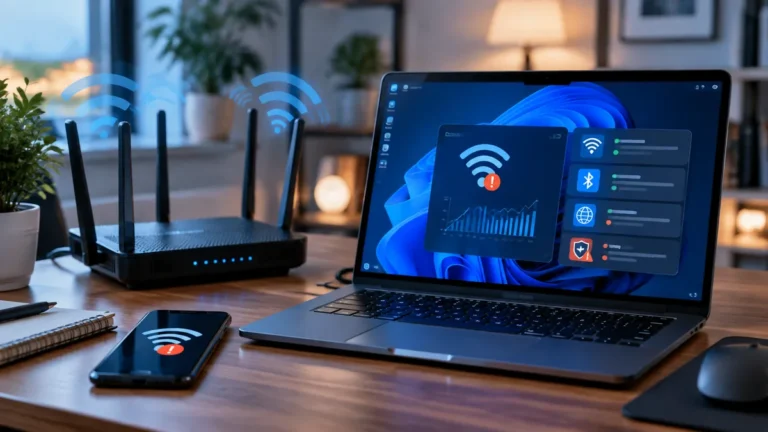
If Ethernet fails through both the dock and a direct known-good adapter, replacing the dock is unlikely to fix the underlying network. If Wi-Fi also fails, the problem may be upstream. If wired Ethernet is stable but Wi-Fi is not, use our Ethernet versus Wi-Fi comparison and Wi-Fi troubleshooting guide to isolate the wireless path.
If the dock itself is not recognized reliably, review our USB-C desk setup guide before adding more peripherals. A dock can only provide reliable Ethernet if the upstream connection to the laptop is stable first. If video output is also missing, use our USB-C monitor troubleshooting guide for Windows 11. If the failure is limited to USB audio after the September 2026 update, see our USB Audio Code 10 guide.
When replacement becomes reasonable
Replacement makes sense after a known-good cable and network port work with another adapter, Windows repeatedly fails to recognize the dock’s LAN controller despite the correct manufacturer driver/firmware, or the dock has an identified hardware fault. Before buying, verify that the replacement explicitly supports your operating system, laptop connection, required Ethernet speed, displays, charging, and other devices you plan to use at the same time.