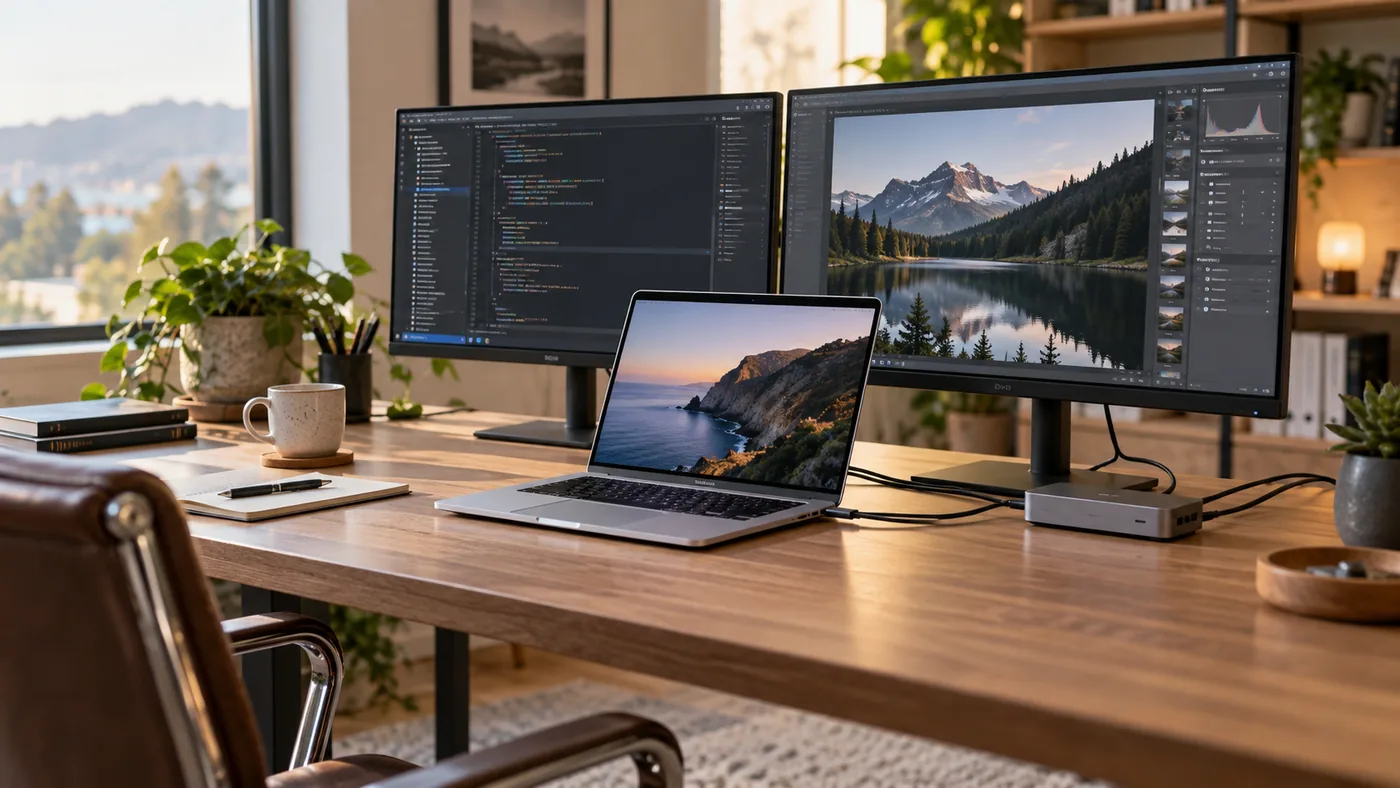
Apple changed the MacBook Air display story in a meaningful way. With the M5 MacBook Air, you no longer have to close the laptop lid just to get two external screens. Apple documents support for two external displays at the same time while the built-in display remains active.
That sounds simple, but the setup can still fail for reasons that have nothing to do with the M5 chip. A dock may not expose the right display technology, a cable may cap the refresh rate, or the monitors may be asking for more bandwidth than the connection can deliver.
This guide focuses on the practical part: what the M5 MacBook Air supports, how to connect two monitors cleanly, and what to check before buying a dock.
What the M5 MacBook Air supports
Apple lists the M5 MacBook Air as supporting up to two external displays while the built-in display runs at its full native resolution.
For two external displays, Apple specifies up to:
- two 6K displays at 60Hz, or
- two 4K displays at 144Hz.
For one external display, the ceiling is higher. Apple lists support for up to 8K at 60Hz, 5K at 120Hz, or 4K at 240Hz.
There is one especially useful detail for desk setups: Apple says the M5 MacBook Air can support up to two external displays through a single Thunderbolt port. That makes a one-cable desk possible if the dock and displays are compatible.
The simplest two-monitor setup
If your goal is a stable office setup rather than the fewest possible cables, the simplest configuration is often:
- Connect power through MagSafe.
- Connect one monitor to each Thunderbolt port.
- Leave the MacBook Air open and use its built-in display as a third screen.
This removes the dock from the video path and gives you the cleanest troubleshooting baseline.
If both monitors work this way, but one disappears when you move them to a dock, the Mac is probably not the limiting factor. The dock, cable, adapter, or display-output design becomes the next thing to investigate.
Can one dock run both monitors?
It can, but the phrase “dual-monitor dock” is not enough to guarantee compatibility.
The M5 MacBook Air uses Thunderbolt 4 / USB4 ports with DisplayPort support. A Thunderbolt dock that properly exposes multiple display streams is usually the cleaner choice for a one-cable desk.
A cheaper USB-C hub may still provide two video connectors, but the way those connectors are implemented matters. Some products rely on technologies or platform assumptions that work differently on macOS. Others may support two outputs only by mirroring them.
Before buying, check the dock manufacturer’s macOS compatibility table. Look for a statement that specifically addresses two extended displays on Apple silicon, not just “dual HDMI” on the product page.
If you are still deciding between a hub and a full dock, TechRankly’s guide to USB-C hubs vs. docking stations explains the trade-offs.
Why a monitor may run at a lower refresh rate
The M5’s display ceiling does not mean every cable, adapter, dock, and monitor combination will hit it.
Apple notes that a display can fall back to a lower resolution or refresh rate when the video cable or adapter does not support the requested mode. This is easy to miss with USB-C because two cables can look identical while supporting very different data and video capabilities.
If a 4K monitor is stuck at 30Hz or 60Hz when you expected more, test it directly on the MacBook Air before changing macOS settings.
A good troubleshooting order is:
- Connect the affected monitor directly to the Mac.
- Use the monitor’s best available input, such as DisplayPort or USB-C.
- Use a cable rated for the resolution and refresh rate you want.
- Confirm the monitor’s input menu is set to the correct mode.
- Only then put the dock back into the chain.
For more on refresh-rate bottlenecks, see Why Your USB-C Hub Runs a 4K Monitor at Only 30Hz.
A one-cable desk still has a power question
A single Thunderbolt connection can carry display data and charging, but the dock must still deliver enough power for the laptop.
Do not assume the wattage printed on the dock’s power brick is the same wattage delivered to the Mac. The dock itself needs power, and some docks reserve part of the adapter’s capacity for USB devices, Ethernet, and downstream ports.
For a fixed desk, using MagSafe for charging and Thunderbolt for the dock is perfectly reasonable. You lose the “one cable” aesthetic, but you simplify power troubleshooting and free the dock from having to be your charger too.
What if only one display appears?
Start by bypassing the dock.
If both displays work when connected directly to the Mac but not when routed through the dock, check the dock’s documentation for:
- macOS dual-display support,
- Thunderbolt vs. plain USB-C operation,
- maximum display combinations,
- required firmware,
- whether both video ports can run as extended displays on macOS.
If one display also fails when connected directly, focus on the cable, adapter, monitor input, and macOS display detection.
Apple recommends checking the physical connection, confirming the display is allowed to connect when macOS prompts for accessory permission, and testing the display directly on the Mac if it was connected through a hub or dock.
M5 vs. older MacBook Air models
This is where many buying guides become confusing.
The M2 MacBook Air natively supports one external display.
The M3 MacBook Air can use two external displays, but Apple’s supported two-display configuration requires the laptop lid to be closed. Opening the lid causes the secondary external display to disconnect or go dark.
The M4 MacBook Air moved to two external displays while keeping the built-in display active.
The M5 continues that more flexible arrangement and adds a particularly useful documented option: up to two external displays over one Thunderbolt port.
If you are comparing generations specifically for a multi-monitor desk, this difference matters more than a small benchmark gain.
| Connection approach | Why use it | Main thing to check |
|---|---|---|
| One Thunderbolt connection to a compatible dock | Cleaner one-cable desk | Dock display architecture and bandwidth |
| Direct display connections | Simple troubleshooting path | Available ports and adapters |
| Thunderbolt for display + MagSafe for power | Separates display and charging paths | Cable and dock arrangement |
Bottom line
The M5 MacBook Air is no longer the awkward choice for a three-screen desk. Two external monitors plus the built-in display are officially supported.
The remaining risk is not the number of displays. It is the connection chain. A dock, cable, or adapter can still reduce refresh rate, mirror screens, or fail to expose both displays properly.
Build the setup in layers: prove each monitor works directly, then introduce the dock, then add charging and peripherals. That approach is faster than replacing random parts and gives you a clear answer when something fails.