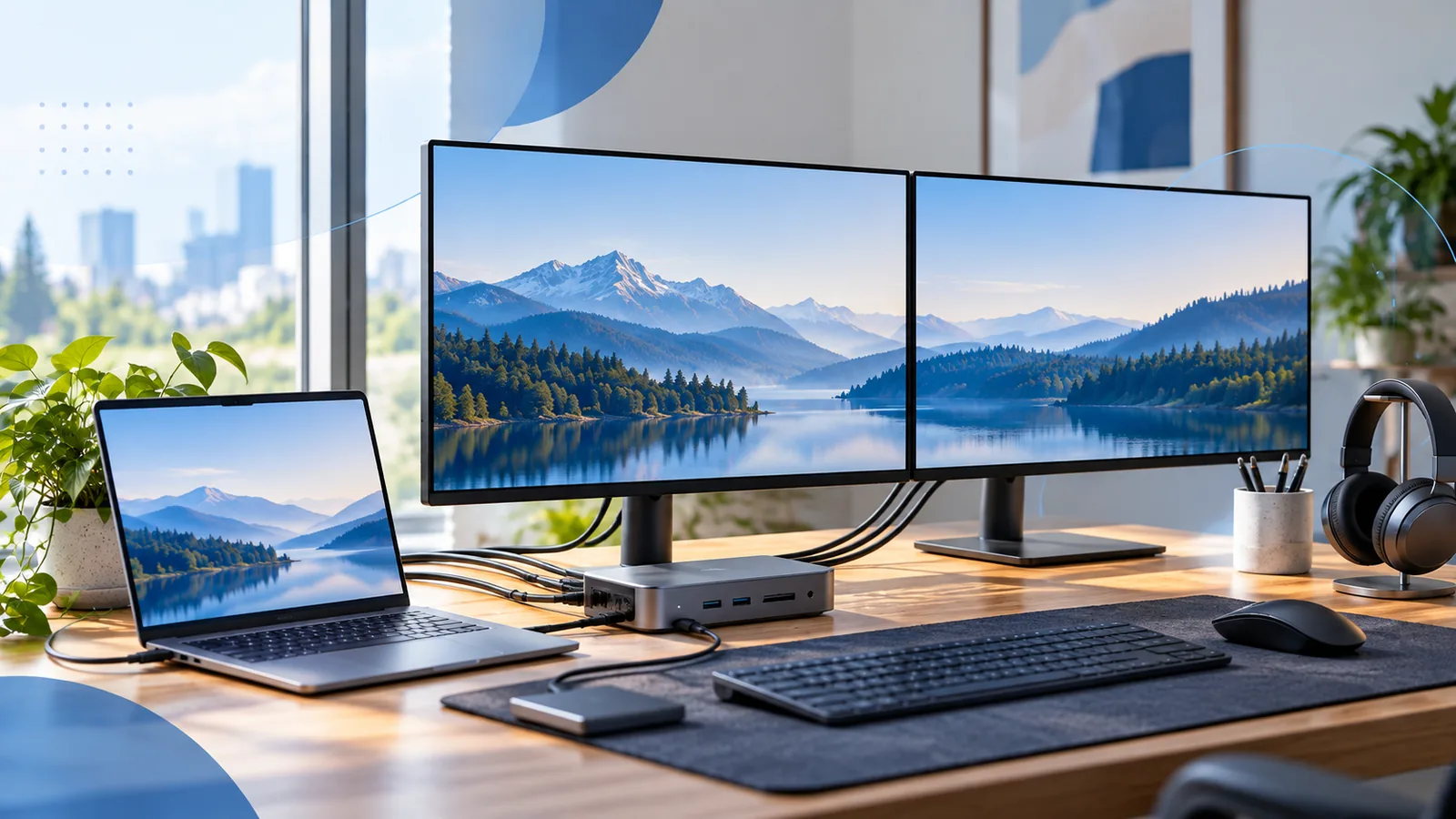
A dock can have two HDMI ports and still fail to run two 4K monitors at 60Hz.
That is not necessarily false advertising. It is often a bandwidth architecture problem.
A single USB-C connection may be carrying display data, USB storage, Ethernet, audio, and charging at the same time. Depending on the host port, dock design, DisplayPort version, and use of compression, the dock may have to trade one capability for another.
That is why some docks offer dual 4K only at 30Hz, while others can reach 60Hz but reduce USB data speed.
Port count does not tell you bandwidth
The first mistake is shopping by connectors.
Two HDMI ports tell you that the dock has two HDMI outputs.
They do not tell you:
- the maximum resolution with both active,
- the refresh rate with both active,
- whether both can extend on your operating system,
- how much DisplayPort bandwidth is available,
- or what happens to USB data speed at the same time.
Always find the multi-display table in the specifications.
If a manufacturer only advertises the best single-monitor mode, assume nothing about two-monitor performance.
How USB-C shares high-speed lanes
USB-C is the connector shape. The underlying connection can support different technologies and lane allocations.
DisplayPort Alt Mode can use high-speed lanes that might otherwise be used for USB data.
Some designs prioritize more lanes for video to achieve higher display bandwidth. The trade-off can be slower USB data performance.
Other designs preserve high-speed USB lanes but leave less raw bandwidth for displays.
Thunderbolt and USB4 docks can handle this differently because they tunnel data and display traffic over a higher-bandwidth link.
The practical point is simple: “USB-C dock” is a very broad product category.
Why 4K 30Hz feels so different from 60Hz
For static documents, 30Hz technically works.
For everyday cursor movement, window dragging, scrolling, and timeline work, 60Hz feels much smoother.
That is why a dock that says “4K” without a refresh rate is not enough information for a productivity setup.
TechRankly already covers the single-display version of this issue in Why Your USB-C Hub Runs a 4K Monitor at Only 30Hz.
With two displays, the bandwidth pressure is even greater.
Display Stream Compression can change the equation
Newer DisplayPort implementations can use Display Stream Compression, or DSC, to carry higher-resolution display modes within the available link bandwidth.
But DSC support has to line up across the host, dock, and display path.
A dock that depends on DSC for dual 4K 60Hz may not achieve the same result on a host that does not support the required mode.
This is another reason manufacturer compatibility tables matter more than generic port labels.
Why your external SSD gets slower when the displays are connected
On some USB-C designs, increasing display bandwidth leaves less bandwidth for USB data.
That can turn a nominally fast external SSD into a much slower device while high-resolution monitors are active.
If you use the dock for large media transfers, this matters.
Run a simple test:
- Benchmark the SSD connected directly to the laptop.
- Benchmark it through the dock with displays disconnected.
- Benchmark it through the dock with both displays active.
A large difference between steps two and three tells you the dock is making a bandwidth trade-off.
For storage troubleshooting, see Why Is Your External SSD Slow?.
Thunderbolt is not automatically perfect
A Thunderbolt 4 or USB4 dock gives you a much stronger foundation for multiple high-resolution displays and fast peripherals, but the dock still has a defined display controller, output configuration, and host compatibility matrix.
A Windows laptop with Thunderbolt can behave differently from a Mac using the same dock.
A MacBook Air generation with one native external-display limit can also prevent a normal Thunderbolt dock from creating a second native screen.
The connection standard is only one piece of the system.
A good pre-purchase checklist
Before buying a dual-monitor dock, verify:
- your laptop port type,
- maximum external-display count,
- DisplayPort/Thunderbolt/USB4 capabilities,
- dock dual-display resolution and refresh rate,
- operating-system compatibility,
- whether DisplayLink is required,
- USB data speed when both monitors are active,
- Ethernet speed,
- and host charging wattage.
This sounds tedious, but it is much faster than diagnosing a desk full of almost-compatible hardware later.
Troubleshooting a dock that falls back to 30Hz
If two 4K monitors only run at 30Hz:
- Disconnect one monitor and test the other at 60Hz.
- Swap cables.
- Connect each monitor directly to the laptop.
- Check the dock’s two-display specification.
- Lower one monitor’s resolution and see whether the other can reach 60Hz.
- Disconnect high-bandwidth USB devices.
- Update graphics, Thunderbolt/USB4, and dock firmware where applicable.
If each monitor can run 4K 60Hz alone but not together through the dock, the dock path is the most likely bottleneck.
Bottom line
Dual 4K 60Hz is not a question of whether the dock has enough display connectors.
It is a bandwidth and compatibility question across the laptop, cable, dock, and monitors.
Read the specification for the exact two-display mode you want, and check what happens to USB data speed at the same time. That small amount of homework prevents one of the most common USB-C desk disappointments.
Read the dock specification as a system, not a port list
When a dual-monitor dock falls back to 30Hz, the fastest way to narrow the problem is to compare the exact modes the manufacturer promises with the mode your laptop is actually using. A dock can expose the same connector on the outside while using a very different internal display path.
| Symptom | Useful next test | What the result suggests |
|---|---|---|
| One 4K display reaches 60Hz; two do not | Test both displays separately at 4K 60Hz | Multi-display bandwidth or topology limit |
| Both displays work at 30Hz | Lower one display’s resolution | Available display bandwidth may be the constraint |
| Displays work but SSD slows down | Compare SSD speed with displays disconnected | Shared USB/display bandwidth may be involved |
| One display is never detected | Connect it directly to the laptop | Helps separate host/display support from dock behavior |
Use the return window as a compatibility test
Do not wait until the end of a return period to discover that a dock only supports the advertised mode in a different host configuration. Test every important combination: both displays, intended refresh rates, storage transfers, Ethernet, charging, sleep/wake, and restart. If one feature fails only when another is active, record that combination.
Keep the laptop’s direct connections as a control. If a monitor works directly but falls back through the dock, the dock path deserves investigation. If it fails directly as well, the dock is probably not the first thing to replace.
When comparing docks, save a copy of the manufacturer’s compatibility table or product manual with your purchase notes. Product pages can change, while the exact model and revision you bought may remain the same. That record is useful if you later add a second monitor or troubleshoot a change in USB performance.
Sources
- https://support.microsoft.com/en-us/windows/hardware/fix-usb-c-problems-in-windows
- https://www.usb.org/sites/default/files/USB%20Type%20C%20Functional%20Test%20Specification%202024%2003%2003.pdf
- https://support.apple.com/en-au/102501