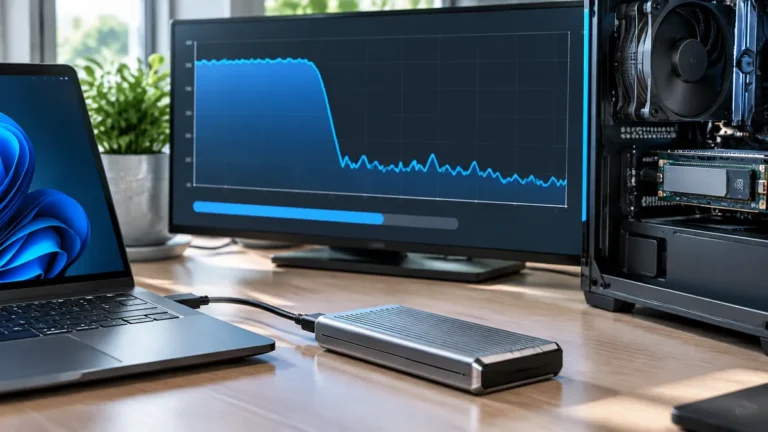
Write down what “slow” means
Record the file size, number of files, transfer direction, elapsed time, and connection path. “Copying a 20GB project folder” is more informative than “the SSD feels slow.” Note whether the folder contains a few large files or thousands of small ones.
Check units before comparing numbers. Eight bits make one byte, so 10 gigabits per second corresponds to 1.25 gigabytes per second before protocol overhead and other limits. That arithmetic is an upper-bound conversion, not an achievable speed promise.
Test a direct connection
Disconnect the hub and connect the drive directly to a port documented to support its interface. Use the supplied data cable or another cable with known capabilities. On a Mac, use Apple’s port identification guide as a starting point, then read the exact model’s specification.
If the direct test is substantially better, examine the hub, its upstream cable, and devices sharing the connection. Do not immediately buy a faster drive; the existing one has already demonstrated that the path matters.
Compare two sensible workloads
- Copy a noncritical large file from a source that can read it fast enough.
- Repeat with a representative project folder containing the files you actually use.
- Run each test under similar conditions, with the same cable and port.
- Record the time for the whole copy, not just the first number displayed.
A short burst can be influenced by caching. A large collection of small files also requires more file-management work than one equally large file. These tests are diagnostic comparisons on your equipment; they do not establish a universal benchmark for the drive model.
| Pattern | What to investigate next |
|---|---|
| Every workload is slow through one cable | Cable capability or damage |
| Direct connection improves the result | Hub path and shared bandwidth |
| One source is slow, another is not | Source drive or network location |
| Long transfers slow down later | Workload, temperature, cache behavior, and free space |
Check background work and available space
Look for cloud synchronization, backup activity, antivirus scanning, indexing, or another file copy running at the same time. Temporarily scheduling ordinary background transfers for later can help isolate contention. Do not disable workplace security controls to make a benchmark look better.
Inspect available space and the manufacturer’s operating guidance. Keep the drive on a surface that allows normal ventilation. A warm enclosure alone is not proof of failure; repeated disconnects, read errors, or files that fail to open deserve more urgent attention.
Protect the files before attempting repairs
If the drive reports errors or disconnects unpredictably, prioritize copying irreplaceable data to another location. Avoid repeated destructive tests or reformatting as a first step. Changing the file system erases or replaces the existing structure and is not a generic speed fix.
Collect the drive model, firmware version, operating system, cable, port, and test observations for support. Use the manufacturer’s official software and instructions if a firmware update is recommended.
Decide whether replacement solves the problem
A replacement is justified when the existing drive cannot meet the workload on a verified compatible connection, has an identified fault, or lacks needed capacity. If the laptop connection is the limit, a higher-rated drive may bring little benefit. Our SSD buying guide helps compare the relevant requirements.
A replacement candidate after you verify the bottleneck
Affiliate disclosure: As an Amazon Associate I earn from qualifying purchases. Some links below are affiliate links. See our affiliate disclosure.
If the drive itself is the confirmed limitation and 1TB fits your capacity plan, the Samsung T7 1TB in Titan Gray (MU-PC1T0T/AM) is one model to compare. Check availability on Amazon. It uses USB 3.2 Gen 2, so a slower host port, cable, or hub can still cap real-world transfers. Do not replace a healthy drive until the direct-connection test shows the storage device is actually the bottleneck.
Whatever the diagnosis, keep recovery separate from performance. See why synchronization and backup are different before trusting a single fast drive with all your work.
A controlled test can tell you whether the SSD is really slow
“My SSD is slow” describes a symptom, not a diagnosis. Before replacing the drive, isolate the storage device from the rest of the connection. A controlled test takes only a few steps and can reveal whether the bottleneck is the SSD, the USB interface, the cable, the hub, the computer, or the files being copied.
Test the same drive in a direct connection
If the SSD normally connects through a hub or dock, connect it directly to the computer. Use the same cable if the cable is known to be appropriate, then repeat the same file transfer. A large improvement points toward the hub, dock, or shared bandwidth. If performance barely changes, continue checking the drive and computer.
Compare a real file transfer with a benchmark
Benchmarks can be useful, but they measure controlled patterns. Your real workflow may involve thousands of small files, compressed data, application reads and writes, or a mixture of operations. Test with a representative folder as well as a benchmark if you use one.
| Result | What to investigate next |
|---|---|
| Fast direct, slow through hub | Hub/dock bandwidth or configuration |
| Slow everywhere | Drive, enclosure, cable, port or thermal behavior |
| Fast with one file, slow with many small files | File workload rather than peak sequential speed |
| Fast when cool, slower after long use | Thermal or sustained-performance behavior |
Check free space and the source drive
A transfer can also appear slow because the source drive is the bottleneck. If you copy from an older hard drive to a fast SSD, the SSD may simply be waiting for the source. Check both ends of the transfer rather than assuming the destination is responsible.
Free space matters too. A drive that is nearly full can behave differently from one with plenty of working room, depending on the controller and workload. Do not treat a single speed result as proof of failure.
Keep the backup question separate
If the SSD contains important files, make sure another copy exists before running stressful tests, firmware updates, or reformatting operations. Performance troubleshooting should never turn into an avoidable data-loss event.
If the drive is still the bottleneck after the controlled tests, compare its interface and sustained performance with the requirements of your workload. Our SSD buying guide explains what specifications matter, while the capacity guide helps decide whether a replacement should prioritize space instead of speed.