Describe the symptom precisely
Record whether others cannot hear you, your incoming video freezes, screen sharing becomes unreadable, or the entire application stops responding. Note the time and whether other people using your connection experience the same issue. One participant’s poor video can originate at their end, so ask whether everyone sees the same problem.
Google’s meeting-quality troubleshooting guidance recommends observing connection stability and trying wired Ethernet where possible. The purpose of the comparison is to isolate the local wireless link, not to declare all Wi-Fi unsuitable for work.
Use a three-location comparison
- Test the normal desk location during the usual working period.
- Test closer to the primary router, keeping the laptop and meeting app the same.
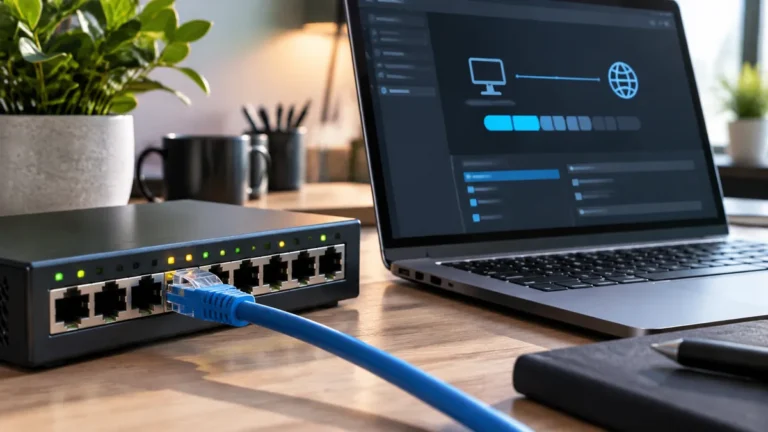
- If practical, test Ethernet to the primary router or a known wired network path.
Keep the test conditions similar. Avoid comparing a quiet late-night test with a busy afternoon call while several devices upload files. Write down whether the symptom changes instead of relying on memory.
| Result | Likely next investigation |
|---|---|
| Desk is poor, near-router test is better | Coverage, placement, interference, or mesh backhaul |
| Wi-Fi struggles, direct Ethernet is stable | Wireless link or wireless configuration |
| Both paths struggle on several devices | Internet service, shared traffic, or upstream issue |
| Only one computer struggles | Computer load, adapters, drivers, or app settings |
Check the traffic you are sending
A cloud backup, large upload, or another simultaneous call can affect the available connection. Look at upload activity as well as downloads. Microsoft’s Teams network guidance explains that actual meeting bandwidth varies with layout, resolution, and frame rate; one universal “required speed” is therefore misleading.
Pause or reschedule nonurgent file transfers during a comparison test. Keep workplace security and required VPN settings intact unless your IT administrator instructs otherwise. If company access rules are involved, send the observations to IT rather than attempting to bypass them.
Try the least expensive changes first
Move the router or mesh node away from obstructed locations and follow the manufacturer’s placement advice. Test another supported Wi-Fi band if available. Restarting a device may clear a temporary problem, but record recurring failures so the underlying issue is not hidden by repeated resets.
A mesh option after you confirm a coverage problem
Affiliate disclosure: As an Amazon Associate I earn from qualifying purchases. Some links below are affiliate links. See our affiliate disclosure.
If the near-router test is clearly better and several rooms need coverage, the TP-Link Deco X55 three-pack is one mesh system to compare. Check availability on Amazon. TP-Link documents Wi-Fi 6, three Gigabit Ethernet ports per unit, and optional Ethernet backhaul. It is not a fix for a slow ISP connection or a problem that remains on direct Ethernet, so complete the diagnosis before buying.
If coverage is the issue, compare a wired access point, a mesh system, and a range extender using the location where the network connection must reach. A mesh node connected by Ethernet can still help wireless clients; the important distinction is the node’s upstream path.
If you are also comparing internet plans to reduce your monthly bill, check eligibility before changing service. Our guide to Internet Essentials for current Xfinity customers explains the account-history rules to verify.
Check the computer too
If the application becomes unresponsive while the network appears stable, close unnecessary workloads and inspect the computer’s resource usage. Reduce optional visual effects or outgoing video settings as a diagnostic test. Also check that the correct camera and microphone are selected.
Before buying anything, identify which change actually improves the call. Use our mesh versus extender guide for a coverage purchase, Ethernet backhaul guide for node wiring, or Ethernet versus Wi-Fi comparison for a fixed desk.
Apply the same diagnosis to a stream
If a local recording looks normal but the received stream breaks up, isolate the connection before upgrading the camera. The streaming budget comparison helps assign spending to the demonstrated problem. Mobile broadcasts are a different environment; see the documented IShowSpeed touring workflow before comparing them with a fixed home desk.
How to troubleshoot a freezing video call without guessing
A video call that freezes can be caused by Wi-Fi, the internet connection, the computer, the meeting application, or the camera itself. The fastest approach is to identify which part changes when the symptom appears. Start with the simplest comparison instead of immediately buying a new router.
Notice what actually freezes
If the picture freezes but audio continues, the problem may be related to video processing or bandwidth. If both audio and video stop, network connectivity becomes more suspicious. If the application itself becomes unresponsive while other programs remain normal, the computer or application may be the issue.
Compare locations and connection types
Run the same call from the normal desk and from a location closer to the router. If the problem disappears near the router, Wi-Fi coverage or interference deserves attention. If you can temporarily use Ethernet, compare the same meeting over the wired connection. A stable wired call is strong evidence that the local wireless path needs improvement.
| Observation | Next check |
|---|---|
| Only one room has the problem | Wi-Fi signal and interference |
| All devices struggle | Router or internet service |
| Only one computer struggles | Adapter, drivers, CPU or application |
| Ethernet fixes the issue | Wireless path is the likely variable |
Check upload as well as download
Video calls send your camera and microphone data as well as receiving the other participants. A connection can show an impressive download result while upload performance is unstable. Test the direction that matches the symptom and watch for sudden changes rather than only the peak number.
Reduce variables one at a time
Pause large uploads, disconnect unnecessary network-heavy devices, and close applications that are using the camera or significant system resources. Then repeat the call. If the problem disappears, restore one change at a time. This is much more informative than changing the router, Wi-Fi channel, and webcam simultaneously.
If the problem is consistently limited to a weak room, compare mesh, extender, and access point options. If you already have Ethernet between network nodes, check whether the mesh is actually using wired backhaul. And if the desk is fixed, our Ethernet versus Wi-Fi guide explains when running a cable is worth the effort.
The goal is not to buy the newest networking hardware. It is to identify the variable that changes the result, then spend money only on the part of the system that addresses that variable.