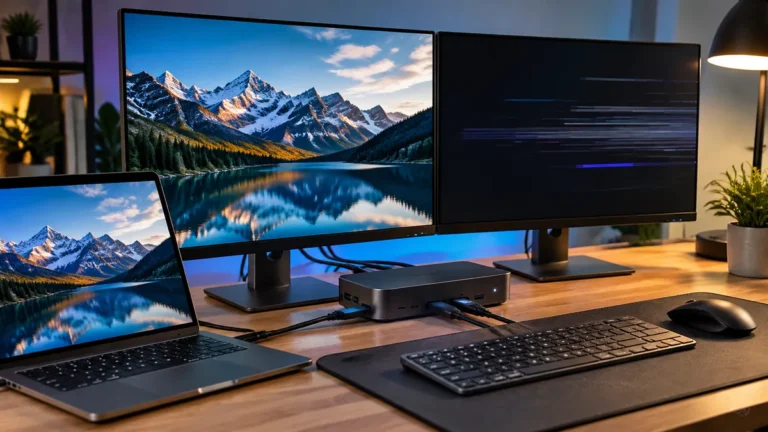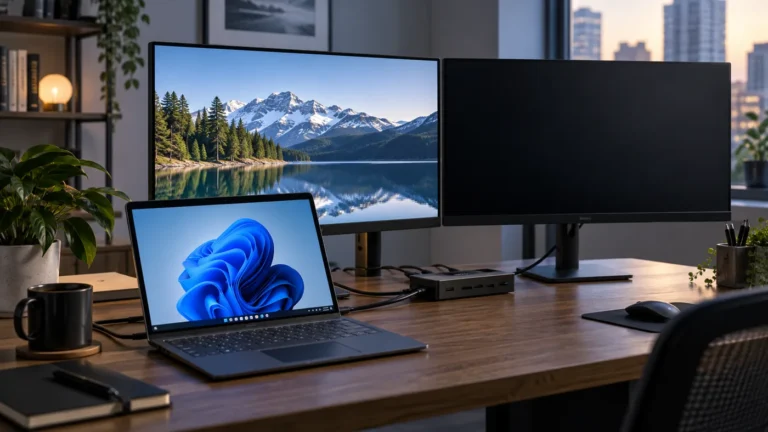
A USB-C dock can expose two HDMI ports and still show the same picture on both screens. The missing detail is usually the display technology inside the dock: DisplayPort Multi-Stream Transport (MST) or DisplayLink.
They solve a similar desk problem in different ways. MST carries multiple native display streams through one DisplayPort connection. DisplayLink sends display data as USB traffic through a software and hardware system. Your laptop, operating system, monitor resolution, and protected-content needs determine which approach makes sense.
Updated October 2, 2026. This guide explains the difference before you buy a dual-monitor USB-C dock.
Quick answer: MST or DisplayLink?
- Choose MST when your computer and USB-C port support DisplayPort Alt Mode, you use Windows or another MST-compatible host, and you want a native display path without a driver.
- Choose DisplayLink when you need extended displays from a Mac that does not natively support the number of monitors you want, or when the dock specifically advertises USB graphics support for your computer.
- Choose a native Thunderbolt or USB4 dock when your laptop already supports the required number of displays and you want the simplest path with the fewest software dependencies.
Do not decide from the number of HDMI sockets alone. Two outputs can mirror one signal, depend on MST, or use DisplayLink. The product specification should state which method is used.
What MST does in a USB-C dock
MST is part of the DisplayPort standard. A compatible source can send more than one independent display stream through a single DisplayPort connection, and an MST hub in the dock routes those streams to separate outputs. VESA describes MST as a way to connect multiple displays from one DisplayPort source port.
On a USB-C laptop, that source connection is commonly DisplayPort Alt Mode. The USB-C port must support video, the laptop firmware and graphics system must support the required displays, and the dock must have enough bandwidth for the chosen resolution and refresh rate.
MST advantages
- No DisplayLink Manager installation is required.
- The displays use a native display path, which is generally the better fit for color-sensitive work and low-latency desktop use.
- It can work well with Windows laptops that explicitly support MST over USB-C.
MST limitations
- Many base-model Apple silicon Macs do not extend two independent displays through a conventional MST hub. A dock can have two ports while macOS mirrors them or activates only one.
- The laptop’s display limit still applies. A hub does not create a new GPU or raise Apple’s maximum number of supported displays.
- Resolution and refresh rate share the available link bandwidth. Two 4K displays at high refresh rates require more bandwidth than two 1080p screens.
What DisplayLink does differently
DisplayLink is a USB graphics technology from Synaptics. A compatible dock uses a DisplayLink chip, and the computer runs DisplayLink Manager to create virtual displays over USB. On macOS, the software needs the appropriate permission to capture and transmit the desktop image to the USB display device.
This can solve a real limitation. For example, a MacBook Air with a chip that natively supports only one external display can use a DisplayLink dock for additional extended screens, provided the dock, software, macOS version, and permissions are compatible.
DisplayLink advantages
- It can add extended displays beyond a Mac’s native display limit.
- It works over a USB connection rather than requiring every display to be driven directly by the laptop’s GPU outputs.
- It is useful for office work, documents, browser windows, dashboards, and other mostly static content.
DisplayLink limitations
- You must install and maintain DisplayLink Manager and grant the required macOS permission.
- Display data shares USB bandwidth with other dock functions. Heavy file transfers, cameras, storage, and displays can compete for the same connection.
- It is not the first choice for competitive gaming, color-critical workflows, or protected video. Some protected-content paths may not work as expected on a virtual DisplayLink screen.
- A DisplayLink dock is not automatically compatible with every other USB graphics driver. Synaptics warns that third-party USB graphics solutions can conflict with DisplayLink software.
Why a Mac may mirror two monitors
When a Mac shows the same image on two monitors connected to one USB-C dock, the dock is often using MST while the Mac is not accepting the two-stream arrangement for extended mode. The extra HDMI port does not prove that the Mac supports two independent displays through that dock.
Check Apple’s display specification for your exact Mac model first. Apple says the number of displays depends on the model and on each display’s resolution and refresh rate. For example, Apple’s current MacBook Air support page lists different limits by chip, and closing the lid does not automatically increase the limit for every model.
If the Mac’s native limit is one external display and you need two extended screens, look for a dock that explicitly identifies DisplayLink support. If the Mac natively supports two displays, a Thunderbolt or USB4 dock with native outputs may be simpler than adding DisplayLink software.
For a broader explanation of MacBook display limits, see our MacBook Air dual-monitor guide.
How to choose the right dock
1. Identify the laptop’s video capability
Confirm that the USB-C port supports DisplayPort Alt Mode, Thunderbolt, or USB4 with display output. A USB-C port used only for data and charging cannot drive a monitor just because the connector has the right shape.
2. Count independent displays, not ports
Write down the number of extended screens you need, their resolution, and their refresh rate. Then compare that list with the laptop’s official limit and the dock’s exact operating mode.
3. Decide whether you accept a driver
Native MST or Thunderbolt is usually easier to maintain. DisplayLink is more flexible for adding screens to a constrained Mac, but it adds software, permissions, updates, and a virtual display path.
4. Check the rest of the dock
Verify laptop charging, Ethernet speed, USB data rates, SD card support, audio, and whether the included power adapter is required. A dock that solves the monitor problem but underpowers the laptop or shares too much bandwidth may still be a poor fit.
Our USB-C hub versus docking-station guide explains when a simpler hub is enough, and our home-office USB-C setup guide covers the connection path from laptop to peripherals.
Before returning a dock: a short diagnostic
- Connect the laptop charger directly and confirm the USB-C port supports video.
- Test one monitor at a time and select the correct input on each display.
- Check whether the dock specification says MST, DisplayLink, Thunderbolt, or USB4.
- On macOS, install the manufacturer’s current DisplayLink Manager only when the dock actually uses DisplayLink, then review Screen Recording permissions.
- On Windows, update the laptop graphics and USB-C or Thunderbolt drivers from the computer manufacturer.
- Reduce resolution or refresh rate temporarily to identify a bandwidth limit.
- Remove other high-bandwidth USB devices and retest.
| Technology | Display path | Best fit | What to verify |
|---|---|---|---|
| MST | Native DisplayPort multi-stream | Systems that support multiple displays through the native display path | Operating-system and hardware support |
| DisplayLink | USB plus DisplayLink software | Adding displays when native output is limited | Driver support and macOS limitations |
| Dual-monitor dock | Depends on its internal display architecture | Convenient desk connectivity | Whether it uses MST, DisplayLink or another method |
Bottom line
MST is a native DisplayPort multi-stream method that can be a clean choice for compatible Windows and native multi-display systems. DisplayLink is a software-assisted USB graphics method that can be the practical answer when a Mac’s native display limit is too restrictive. The right choice depends on the laptop’s official display support, not on how many HDMI ports appear on the box.
Sources and verification
- Apple: How many displays can be connected to MacBook Air
- Apple: Connect displays to your Mac
- Synaptics DisplayLink Manager for macOS
- DisplayLink Manager scope and macOS permissions
- VESA: DisplayPort MST overview
Image credit: Serena Tyrrell via Unsplash.