USB4 and Thunderbolt 4 ports look almost identical because both use the USB-C connector. That visual similarity is the reason many people buy an external SSD or dock that cannot deliver the speed they expected.
The label on the port is only the beginning. The host computer, cable, enclosure, controller, and operating system all have to support the same path.
The short answer
Choose Thunderbolt 4 when you want a clearly defined 40 Gbps connection, strong PCIe storage support, and predictable dock compatibility. Choose USB4 when the device is less expensive and its specification clearly lists the speed, display mode, and features you need.
USB4 is a flexible specification. Some USB4 products support 20 Gbps, some 40 Gbps, and newer USB4 Version 2 products can support higher rates with the right certified cable and hardware. A USB4 logo by itself is not a complete performance promise.
What Thunderbolt 4 guarantees more clearly
Thunderbolt 4 is built on USB4 technology, but its certification sets minimum requirements for the experience. Thunderbolt 4 systems support up to 40 Gbps, require a minimum PCIe data rate for storage and other peripherals, and are designed for defined display and device compatibility.
That does not make every Thunderbolt dock identical. Port selection, power delivery, display controller design, and the laptop’s own limits still matter. It does make shopping easier because the floor is more consistent.
Why USB4 can be a better value
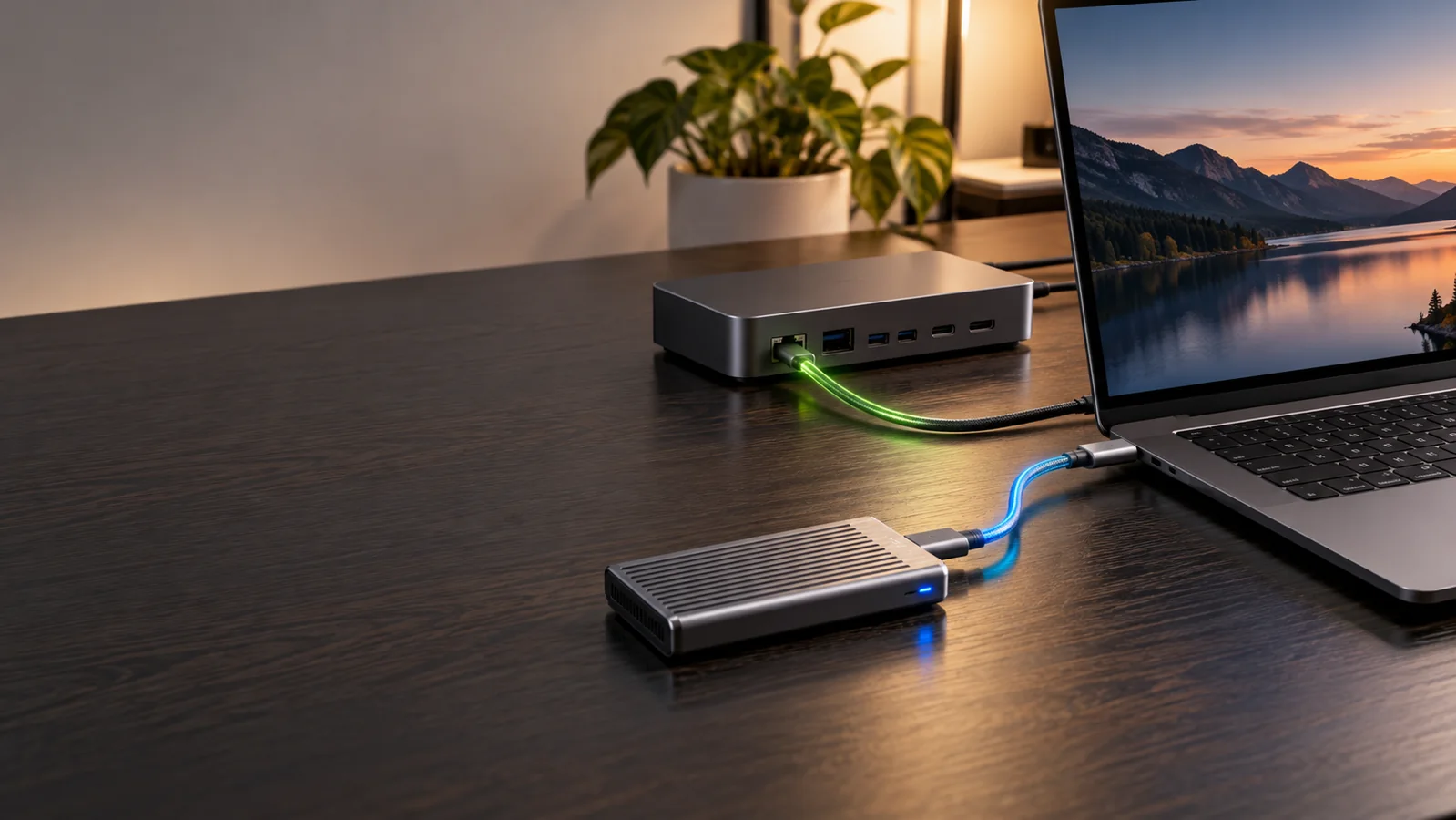
USB4 products can be excellent for an external SSD, especially when you are buying a 40 Gbps enclosure with a good NVMe controller. You may pay less for similar real-world storage speed than a certified Thunderbolt enclosure.
The trade-off is that you have to read the specification more carefully. Confirm:
- the advertised USB4 data rate,
- the PCIe tunneling or storage performance,
- backward compatibility with your laptop,
- display support if it is a dock,
- power delivery limits,
- and the required cable rating.
External SSD performance: the whole chain matters
An SSD enclosure cannot run faster than its slowest important link. The chain looks like this:
- the laptop’s USB4 or Thunderbolt port,
- the cable,
- the enclosure controller,
- the NVMe drive,
- the file system, and
- the workload itself.
A nominal 40 Gbps link does not produce 40 Gbps of file-copy speed. Protocol overhead, heat, drive cache, and small-file workloads reduce the result.
If you already own an SSD that feels slow, test it directly on the laptop before blaming the enclosure. TechRankly’s external SSD diagnostic covers cable, thermal, file-system, and connection checks.
USB4 vs. Thunderbolt 4 for a dock
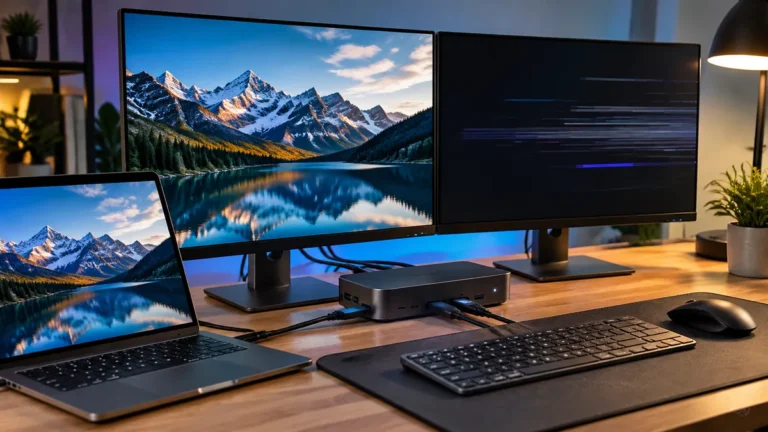
For a simple dock with one monitor, Ethernet, keyboard, and a few USB devices, a well-specified USB4 dock may be enough.
For multiple high-resolution displays, fast external storage, and a single-cable workstation, Thunderbolt 4 is often easier to validate. You still need to check the laptop’s external-display limit. A MacBook Air with a native one-display limit, for example, may need DisplayLink or a different workflow regardless of the dock badge.
Read the exact display table. Two HDMI ports do not automatically mean two 4K 60Hz displays. See why a dock can fall back to 30Hz when it shares bandwidth.
Cable mistakes are common
USB-C describes the connector shape, not the speed. A charging cable can fit perfectly and still be limited to USB 2.0 data.
For USB4 or Thunderbolt 4 storage, use a cable rated for the connection you are testing. Keep it short when troubleshooting. If the drive becomes slow through a dock, connect it directly with the known-good cable and compare.
Which one should you buy?
| Your priority | Better starting point | Why |
|---|---|---|
| Lowest cost for one fast SSD | USB4 40 Gbps | Often enough when the host and enclosure are clearly specified |
| Predictable multi-device dock | Thunderbolt 4 | More consistent certification requirements |
| Two high-resolution displays | Thunderbolt 4 or a tested DisplayLink dock | Display behavior depends on the laptop and dock controller |
| Future USB4 Version 2 hardware | Check every component | Higher link rates need matching host, device, and cable support |
Bottom line
USB4 is not automatically slower than Thunderbolt 4, and Thunderbolt 4 is not automatically faster in every workload. Thunderbolt gives you a clearer minimum feature set. USB4 can deliver excellent value when the specifications are specific and the entire connection chain matches.
Before buying, write down the port on your laptop, the storage or display mode you need, and the cable rating. That checklist is more useful than comparing the logos alone.
A practical buying decision
For most buyers, the decision is easier when you write down the one capability you cannot compromise on. It might be a 40 Gbps storage path, multiple external displays, a specific charging requirement, or compatibility with an existing laptop. Then compare the complete specification instead of choosing by the USB-C connector or the name on the box.
| Priority | What to verify | Common mistake |
|---|---|---|
| Fast external SSD | Host protocol, enclosure controller, cable, and drive | Assuming 40 Gbps means 40 Gbps of file-copy speed |
| Dual monitors | Exact two-display resolution and refresh rate | Counting HDMI/DisplayPort sockets |
| One-cable desk | Video, USB, Ethernet, and charging at the same time | Checking each feature separately |
| Future upgrades | Certified cable and documented host compatibility | Paying for a feature the current laptop cannot use |
When the cheaper option is enough
If your desk uses one display, keyboard, mouse, Ethernet, and occasional storage, a well-specified USB4 solution can be entirely reasonable. Thunderbolt 4 becomes easier to justify when its documented capabilities solve a specific requirement and the price difference is acceptable. The important point is to compare the exact implementation and not assume that every product carrying the same logo behaves identically in every workload.
If you are still undecided, price the complete setup rather than the dock alone. Include the cable you need, the storage enclosure, monitor adapters, power supply, and any software required by the display technology. A lower-priced dock can become the more expensive choice if it requires another adapter to deliver the exact mode your desk needs.
Check the cable and host before blaming the dock
A certified cable can matter as much as the dock because the cable is part of the high-speed path. If a setup works with one cable but not another, record the cable’s capabilities and use the known-good cable for later testing. Also verify which USB-C or Thunderbolt port on the laptop is being used; two USB-C-shaped ports do not necessarily provide identical capabilities. This simple control often prevents an expensive dock replacement when the actual limitation is the host port or cable.