Home Office
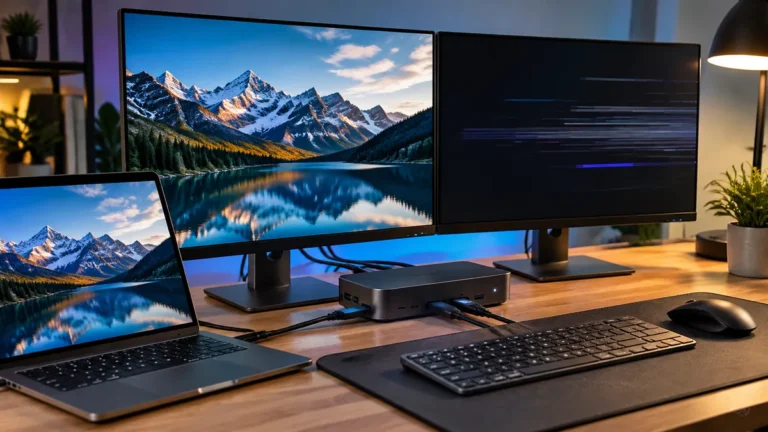
External Monitor Flickering Through a USB-C or Thunderbolt Dock
Does your external monitor flicker or disconnect through a USB-C or Thunderbolt dock? Check bandwidth, cables, power, firmware and display settings.
Author Profile
Andrés Moreno is the founder and editor of TechRankly, where he researches and writes practical troubleshooting guides, hardware comparisons, and compatibility advice for home office equipment, Windows, macOS, storage, and networking.
Home Office
Does your external monitor flicker or disconnect through a USB-C or Thunderbolt dock? Check bandwidth, cables, power, firmware and display settings.
Storage & Backup
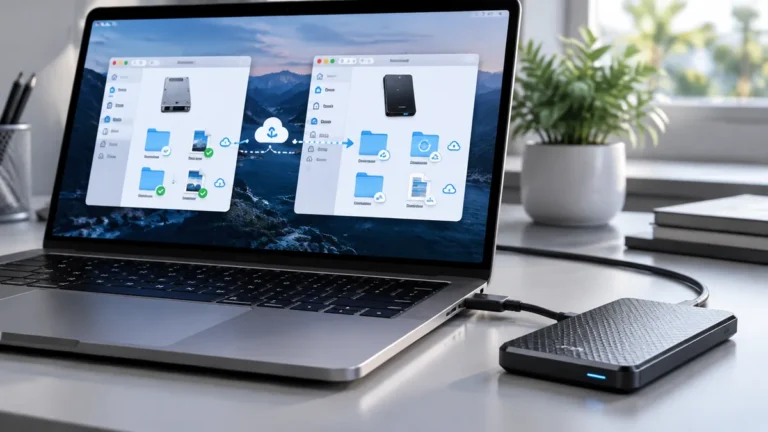
Fix OneDrive’s “folder can’t be found” or stuck sync on an external Mac SSD. Check APFS, FileVault, permissions, mount paths and safe relinking.
AI & Software
Wi-Fi, Ethernet or VPN failing after Windows 11 KB5127648? Check MS-CHAPv2 authentication, drivers and network settings before removing a security update.
Home Office
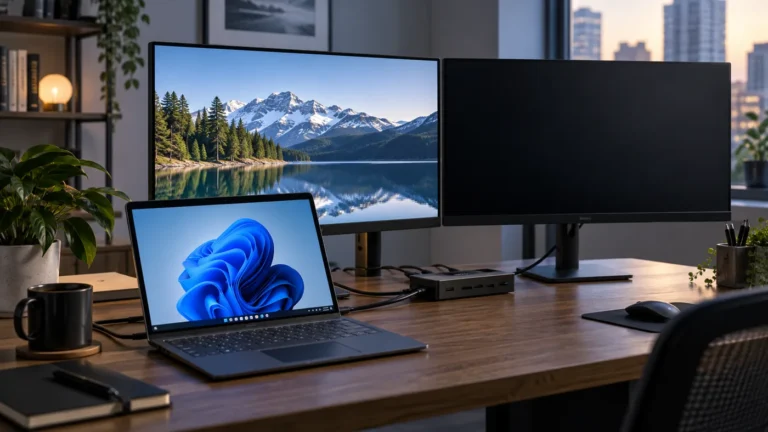
A monitor that works until sleep or wake is a different problem from a monitor that never works. This troubleshooting path isolates the…
AI & Software
Use Google AI Mode as a careful troubleshooting assistant: write better prompts, attach the right details, verify sources, and avoid risky fixes.

AI & Software
Create a Google Account passkey with Windows Hello, understand the security trade-offs, and keep recovery options available on your own PC.
AI & Software
An NPU is a processor built for on-device AI. Learn what it does, what Copilot+ requires, and when an AI PC is worth…
Home Office
A dock can simplify cabling, but it cannot override every MacBook Air display limit. Here is how M5, M4, M3, and M2 differ.
Home Office
USB4 and Thunderbolt 4 use the same USB-C shape, but they do not guarantee the same speed, display support, or SSD performance.
Networking
Wi-Fi 6E already adds the 6 GHz band. Wi-Fi 7 adds wider channels and MLO, but the upgrade only pays off for the…